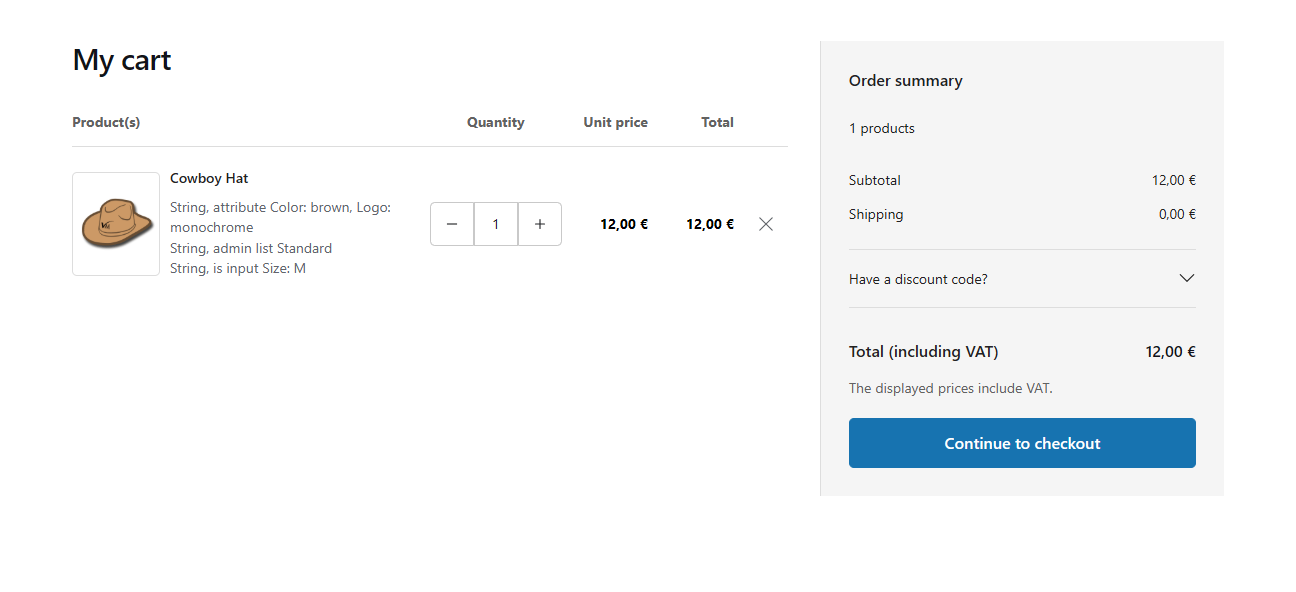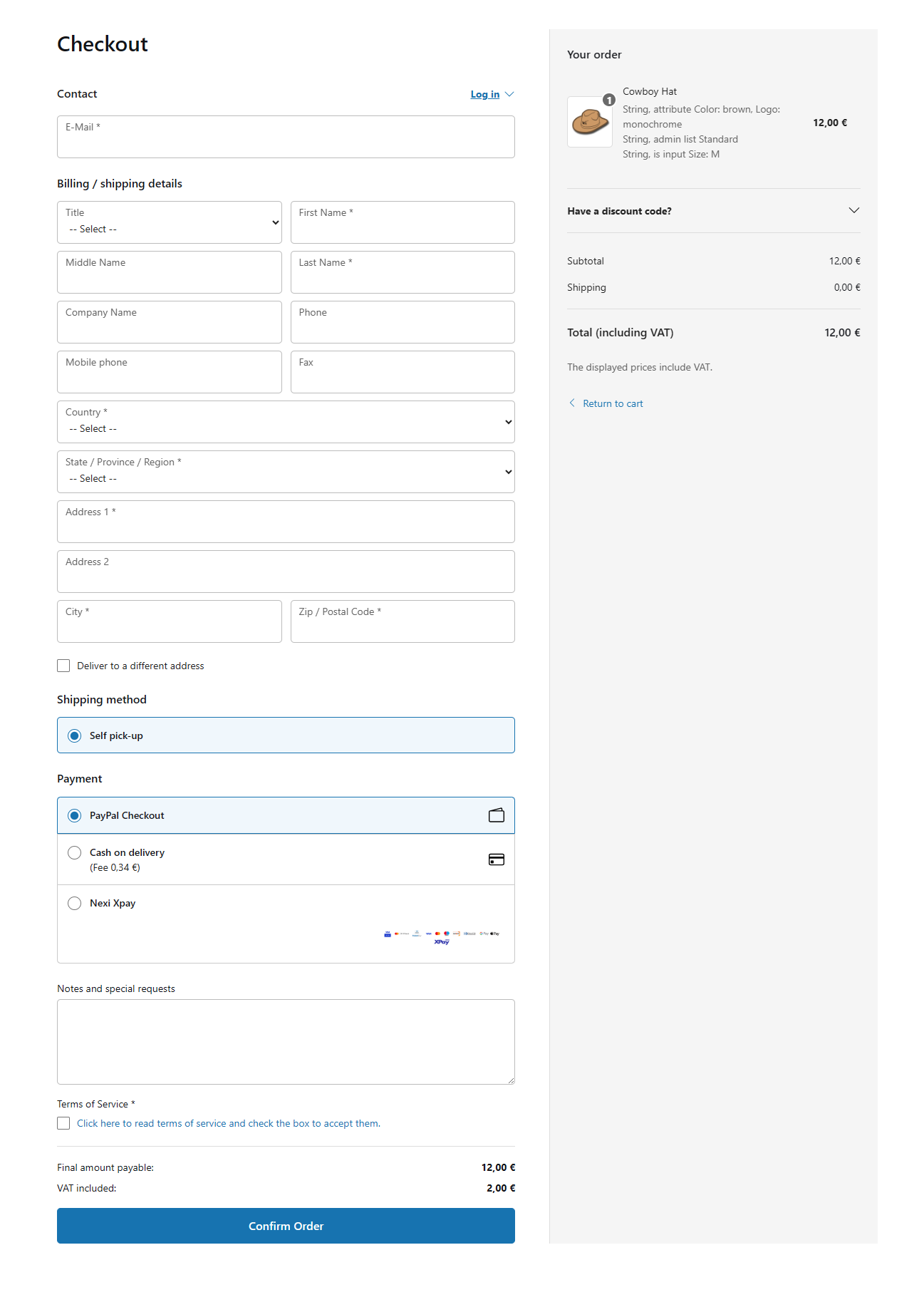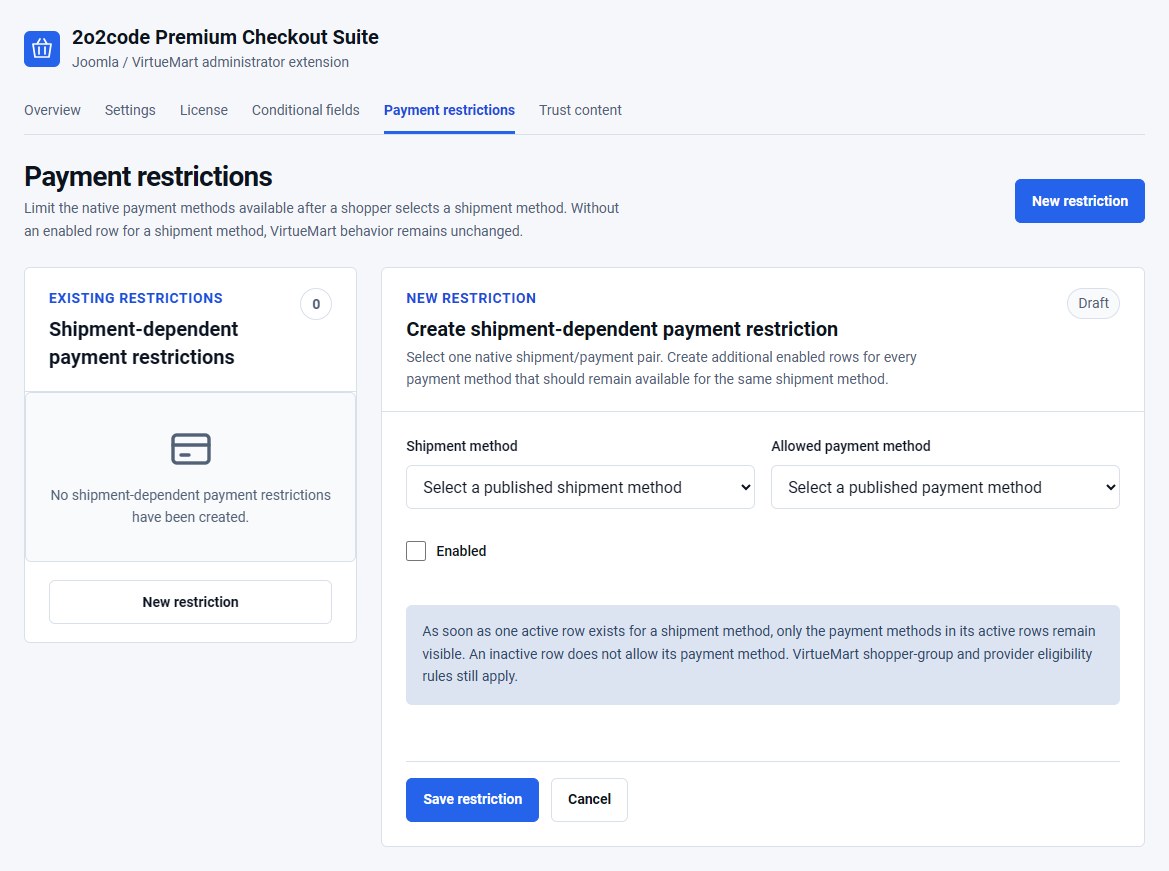
Shopper fields come from VirtueMart
Premium Checkout Suite reads the published VirtueMart shopper fields, their ordering, required state and address context. Create, publish and order fields in the native VirtueMart shopper-field manager.
- Use VirtueMart to create or rename a field.
- Use VirtueMart to decide whether it is required.
- Use VirtueMart to decide whether it belongs to billing, delivery or registration.
- Use Premium Checkout Suite conditional rules only for contextual show, hide or require behaviour.
Country and State/Region
The State/Region choices depend on the selected Country and the states configured in VirtueMart. If the list is empty, first confirm that the country has published states and that the country field appears before the state field.
- Open the checkout as a guest.
- Select the country.
- Wait for the state choices to refresh.
- Select a state and continue.
Check the native VirtueMart country and state records, field publication and ordering. The extension does not invent state data.
Different delivery address
When the store permits alternative delivery details, the shopper can choose a separate address. Billing and delivery fields keep their native VirtueMart address contexts.
Test both paths: one order that uses the billing address for delivery and one that enters a separate delivery address. Confirm that the success and print views show the correct address once, without duplicated native blocks.
Signed-in customer details
Signed-in shoppers can see account-backed details in a protected, read-only presentation. The Edit details action opens the appropriate native account workflow instead of allowing unsafe browser-only changes to authoritative account data.
Always test the flow as a guest, a normal retail customer and any wholesale shopper group used by the store.
Create a guided conditional-field rule
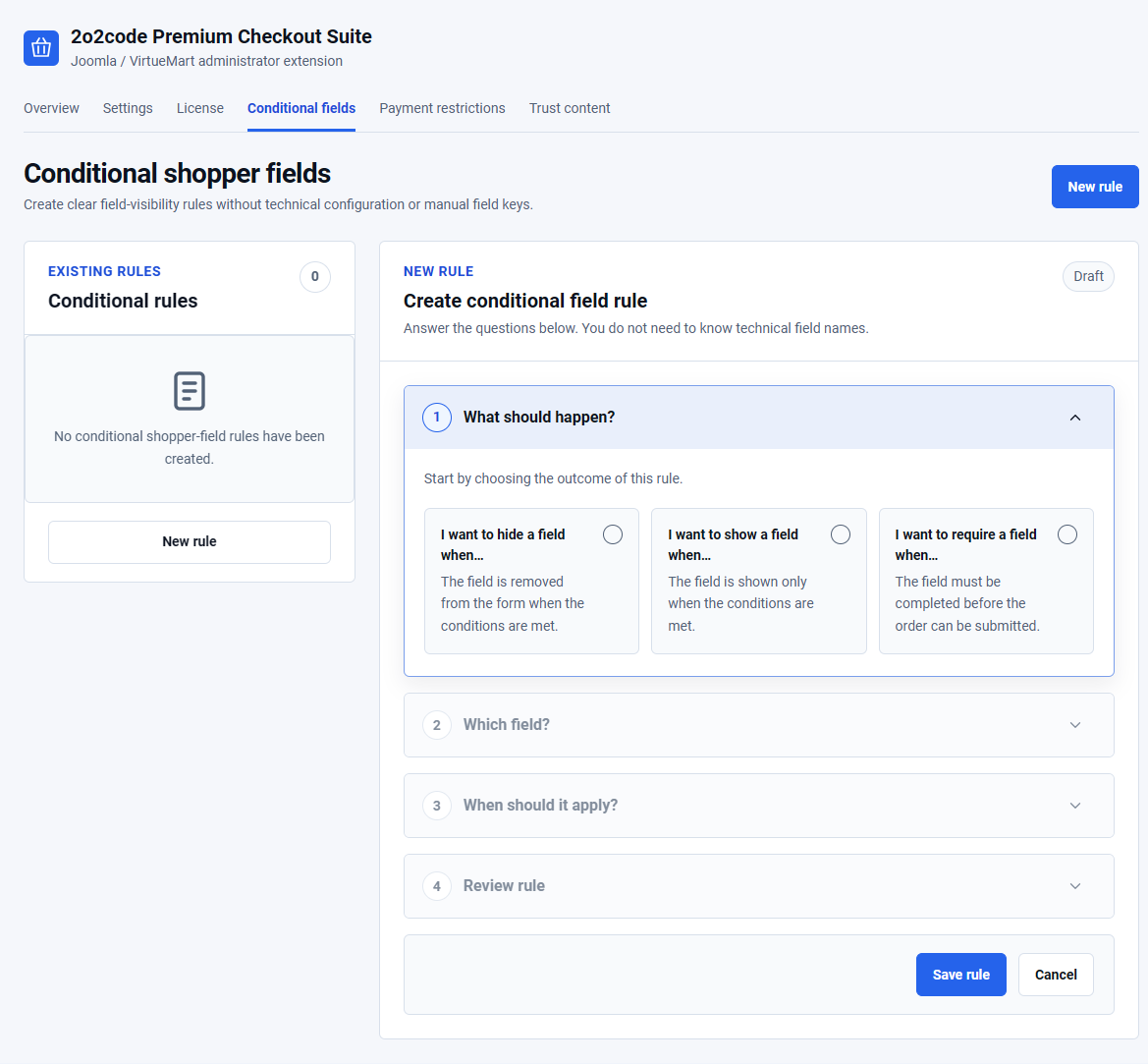
Open Components – Premium Checkout Suite – Conditional fields and select New rule. The builder asks for one choice at a time.
- Choose the field affected by the rule.
- Choose Show when matched, Hide when matched or Require when matched.
- Choose Billing / primary, Alternative delivery or Both.
- Select Match all or Match any.
- Add one or more conditions.
- Review the summary and save the rule.
- Enable the rule after checking its meaning.
Condition sources include shopper fields, payment method, shipment method, cart product, cart category and shopper group. Available comparisons include equals, does not equal, contains, does not contain, is one of, is not one of, empty and not empty.
If a rule hides a field that VirtueMart normally requires, the server applies the reviewed conditional result. Do not use template edits or browser scripts to bypass required-field validation.
Practical rule examples
Show a company field
Show VAT number when Customer type equals Business. Apply it to Billing / primary.
Require delivery instructions
Require Delivery instructions when Shipment method equals Local delivery.
Hide a field for pickup
Hide Delivery notes when Shipment method equals Store pickup.
Wholesale information
Show Purchase order reference when Shopper group is one of the approved wholesale groups.
Use the actual field and method names available in the current website. A missing or unpublished source cannot match a rule.
Verify a conditional rule
- Open a private storefront window.
- Reach the checkout with a product that satisfies the intended scenario.
- Change the source value and confirm the field responds.
- Submit without the field when it should be optional or hidden.
- Submit without the field when it should be required and confirm validation blocks the order.
- Repeat with the rule disabled and confirm normal VirtueMart behaviour returns.
If a rule does not run, confirm that it is enabled, its field still exists, its address context is correct and all referenced methods, products, categories or shopper groups are published.