Practical setup and operation guides for building a clearer VirtueMart cart and checkout without replacing VirtueMart’s pricing, tax, payment or order authority.
Understand the product, requirements and the recommended setup order.
On this page
01
A focused checkout layer for VirtueMart
Overview
Premium Checkout Suite provides accessible cart, checkout, order confirmation and print layouts. It also adds guided conditional fields, payment restrictions, trust content, optional AcyMailing consent and optional account creation after a successful order.
What the extension changes
The presentation and guided customer flow for cart, checkout, confirmation and print pages.
What VirtueMart still controls
Cart persistence, prices, tax, coupons, shipment and payment eligibility, order creation, callbacks and order status.
Important Configure products, tax rules, coupons, shipment methods and payment methods in VirtueMart first. The extension reads and presents those native results.
02
Requirements before installation
Compatibility
Joomla 5.4.xVirtueMart 4.6.8 or later in the VirtueMart 4 seriesPHP 8.2 or 8.3Public HTTPS for production activation; Local license for eligible local websites
Joomla 6 and VirtueMart 5 are outside the current supported boundary. AcyMailing is required only when newsletter consent is enabled.
Install the package and confirm that the component and system plugin are present.
Activate the installation license from the extension’s License page.
Choose One Page or Multistep under Premium Checkout Suite – Settings.
Decide whether customers should see a separate Cart stage.
Keep Customer route takeover enabled and leave Buy now disabled until the normal cart flow works.
Review native VirtueMart shopper fields, shipment methods and payment methods.
Enable optional features one at a time and place a complete test order.
Ready for use The setup is complete when a guest can add products, edit the cart, enter valid details, select eligible shipment and payment methods, submit one order and view the correct confirmation.
Understand the product, requirements and the recommended setup order.
On this page
01
A focused checkout layer for VirtueMart
Overview
Premium Checkout Suite provides accessible cart, checkout, order confirmation and print layouts. It also adds guided conditional fields, payment restrictions, trust content, optional AcyMailing consent and optional account creation after a successful order.
What the extension changes
The presentation and guided customer flow for cart, checkout, confirmation and print pages.
What VirtueMart still controls
Cart persistence, prices, tax, coupons, shipment and payment eligibility, order creation, callbacks and order status.
Important Configure products, tax rules, coupons, shipment methods and payment methods in VirtueMart first. The extension reads and presents those native results.
02
Requirements before installation
Compatibility
Joomla 5.4.xVirtueMart 4.6.8 or later in the VirtueMart 4 seriesPHP 8.2 or 8.3Public HTTPS for production activation; Local license for eligible local websites
Joomla 6 and VirtueMart 5 are outside the current supported boundary. AcyMailing is required only when newsletter consent is enabled.
Install the package and confirm that the component and system plugin are present.
Activate the installation license from the extension’s License page.
Choose One Page or Multistep under Premium Checkout Suite – Settings.
Decide whether customers should see a separate Cart stage.
Keep Customer route takeover enabled and leave Buy now disabled until the normal cart flow works.
Review native VirtueMart shopper fields, shipment methods and payment methods.
Enable optional features one at a time and place a complete test order.
Ready for use The setup is complete when a guest can add products, edit the cart, enter valid details, select eligible shipment and payment methods, submit one order and view the correct confirmation.
Install the package, activate the site license and complete the minimum configuration in a safe order.
On this page
01
Before installing
Confirm that the website runs Joomla 5.4.x, VirtueMart 4.6.8 or later in the VirtueMart 4 series, and PHP 8.2 or 8.3. Take a current website and database backup.
Complete any pending Joomla and VirtueMart maintenance first.
For a live store, use its final public HTTPS address. For a local website, use an eligible local address and a separate Local license.
Keep the downloaded package ZIP unchanged. Do not extract its inner extensions.
Choose the right license activation A Production license uses the live store’s final public HTTPS address. An eligible local website can use a separate Local license without becoming public.
02
Install the package
Open System – Install – Extensions.
Select the Package File tab.
Upload the customer package ZIP.
Wait for Joomla to report a successful package installation.
Do not refresh or close the page while Joomla is installing the component and system plugin.
The package installs the Premium Checkout Suite component and the required Premium Checkout Suite System Plugin.
03
Verify the installed extensions
Open System – Manage – Extensions.
Search for twootwocheckout.
Confirm that the package, component and system plugin show the same installed version.
Confirm that the system plugin is enabled.
Open Components – Premium Checkout Suite and confirm that the dashboard loads without an error.
Common mistake Do not install the component and plugin ZIP files separately. The customer package installs and updates the complete extension set together.
04
Activate the license on a live website
Open Components – Premium Checkout Suite – License.
Use the live store’s final public HTTPS address. Enter the Freemius license key into License key.
Select Activate license.
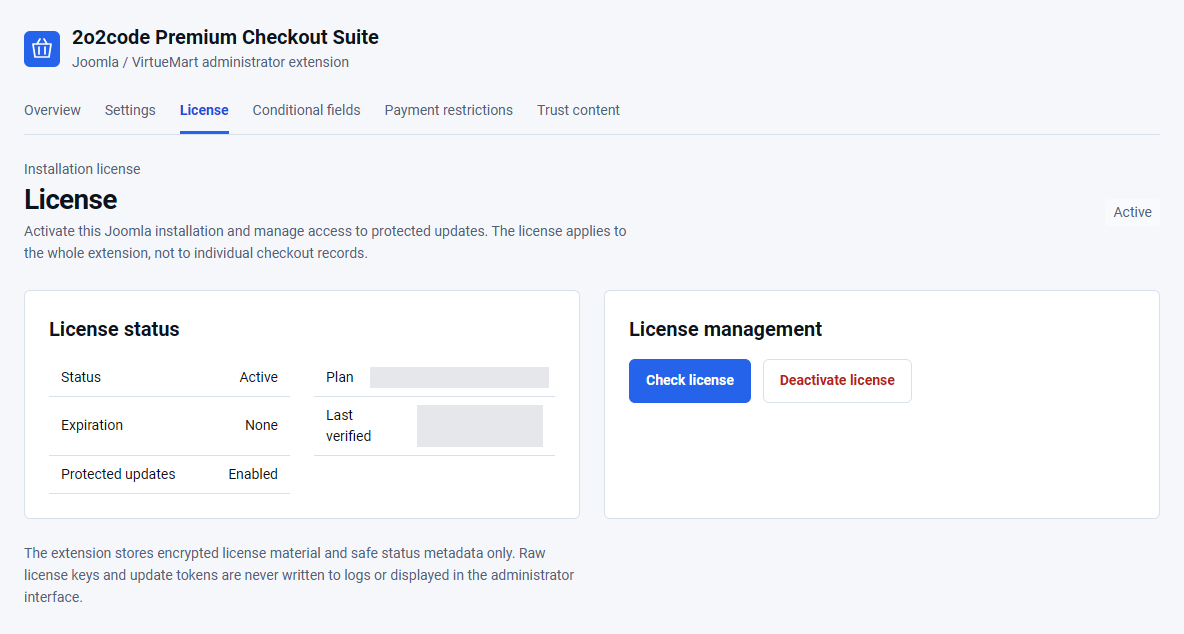
Confirm that Status is Active and Protected updates are Enabled.
The key is encrypted before storage and is not displayed again. Never include the key or Joomla Download Key in screenshots, logs or support tickets.
Keep the license private
Never include your license key or Joomla Download Key in screenshots or support messages.
An active installation shows the license state and protected-update access without exposing the license key.
05
Activate the extension on a local website
What is a local license?
A Local license lets a valid license holder use and test the extension on an eligible local Joomla website. You do not need to make that website public. It is separate from the Production license used by your live store.
Supported local addresses
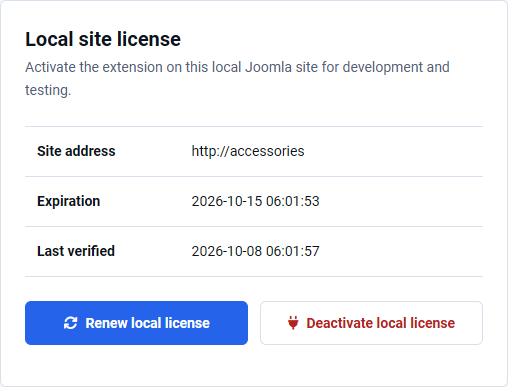
The Local license section appears automatically on eligible local addresses. Its heading on the License page is Local site license.
localhost or an address ending in .localhost.
A loopback or private-network IP address.
A simple local hostname, such as accessories-checkout.
A domain ending in .test or .local.
Use a genuine local address. Do not create a fake public hostname or expose the local website to the internet to activate it.
How to activate a local license
Confirm that System – 2o2code Premium Checkout Suite is enabled.
Open Components → Premium Checkout Suite → License.
Find Local site license. This section appears only on eligible local addresses.
Enter the Freemius license key you received with your purchase.
Select Activate on this local site.
Confirm that the Local license is Active and that Site address shows the correct local website.
Keep your license key private Do not include it in screenshots, examples or support messages.
Renewal and deactivation
A Local license is temporary and lasts for up to seven days. Open the same License page and select Renew local license to renew it. Select Deactivate local license when you no longer use that local installation.
The Local site license panel in version 1.0.3 shows the local address, expiration date and renewal/deactivation controls. Your address and dates will be different.
What the local license includes
It enables the licensed features needed to test the cart, checkout, success page and print page on your local website.
What it does not include
Protected Joomla updates for the local installation.
A separate support entitlement for that local installation.
Permission to take real live payments.
Use test payment settings only. To update a local installation, manually install the new authorized package you are entitled to download.
Moving from local to live
A Local license does not turn into a Production license automatically.
Install the approved production package on the live website.
Open its License page from the store’s final public HTTPS address.
Use the normal Activate license option.
Confirm that the license is Active and Protected updates are enabled.
Activate the live store separately Do not copy Local license tables or license data from the local installation to the live website.
Local license troubleshooting
The Local license section is not displayed
Check that you use the current supported version of the extension and an eligible local address. Public website addresses use the normal Production license activation.
The local license cannot be activated or renewed
Check that your Freemius license key is active and that the local server can make outgoing HTTPS connections. Do not edit the database or copy license data from another installation. Contact support if the problem continues.
The local license is active but the default VirtueMart checkout is displayed
License activation does not choose a checkout layout. Confirm that System – 2o2code Premium Checkout Suite is enabled. Review Checkout behaviour in the extension settings, then check the Cart and Checkout menu items using the next section of this guide.
Protected updates are unavailable locally
This is expected. A Local license does not enable protected-update access. Update the local installation by manually installing the authorized package.
06
Create the Cart and Checkout pages
Joomla uses menu items to decide which template settings and modules appear on each page. Create separate menu items for the Cart and Checkout so these pages do not use the Home page layout or show Home-only modules.
The menu items must remain published, but the menu itself does not need to appear on the website.
Step 1 — Create a hidden menu
Open Menus – Manage.
Select New.
Enter Checkout pages as the menu title.
Enter checkout-pages in Unique Name (the menu type).
Save the menu.
Do not create or publish a menu module for this menu.
What is a hidden menu?
A “hidden menu” is a normal Joomla menu that is not displayed by a menu module. Its menu items remain published and can still provide the correct pages and URLs.
Step 2 — Create the Cart page
Open the new Checkout pages menu.
Select New.
Enter Cart as the menu title.
Select Menu Item Type.
Choose Premium Checkout Suite – Premium cart.
Set Status to Published.
Set Access to Public.
For a website with one language, keep Language set to All.
Save and close the menu item.
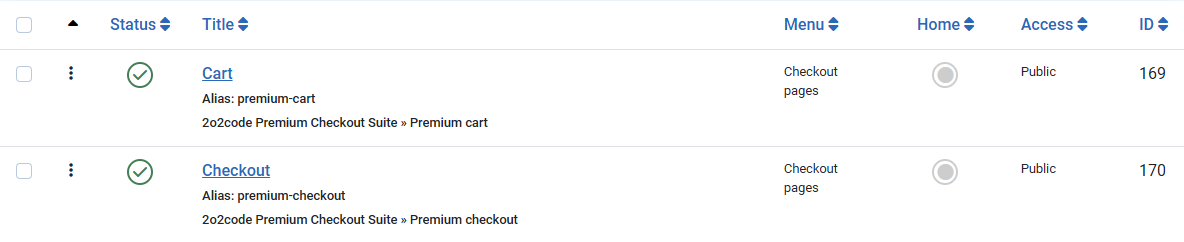
Choose Premium cart for the Cart page and Premium checkout for the Checkout page.
Step 3 — Create the Checkout page
Select New again.
Enter Checkout as the menu title.
Select Menu Item Type.
Choose Premium Checkout Suite – Premium checkout.
Set Status to Published.
Set Access to Public.
Use the same language setting as the Cart page.
Save and close the menu item.
Both menu items remain published with Public access and the correct language, even though the menu has no module.
Multilingual websites
If the website uses more than one language, create a separate Cart and Checkout menu item for each active language. Select the correct language on every menu item.
Check the result
Open the public website.
Add a product to the cart.
Open the Cart and continue to Checkout.
Confirm that modules intended only for the Home page are not displayed.
Global elements, such as the website header and footer, may still appear when they are assigned to all pages.
Home page modules still appear?
If Home page banners, sliders or other Home-only modules appear around the checkout:
Confirm that both menu items are published.
Confirm that their language matches the current website language.
Confirm that their access level allows the customer to open them.
Confirm that Customer route takeover is enabled in Premium Checkout Suite settings.
07
Complete the first-time setup
Open Premium Checkout Suite – Settings.
Keep Layout on its default, One Page, for the first test.
Keep Cart stage enabled.
Leave Locked checkout and Buy now disabled.
Keep Customer route takeover enabled.
Save the settings.
Open the storefront in a private browser window and add a simple product to the cart.
Complete one test order with a safe offline payment method.
Cart opensQuantity can be editedGuest details validateShipment and payment choices appearOne order is createdSuccess page opens
08
Understand license behaviour
Initial activation: required before new extension-owned checkout work starts.
Expired subscription: the already activated checkout continues to operate, while updates, support and new activations stop.
Confirmed disconnect or deactivation: new extension-owned checkout operations stop after authoritative validation.
Temporary service or network problem: the last confirmed license remains in use.
Existing orders: callbacks, completion, recovery and printing remain available and do not depend on a live license request.
Use Check license after a temporary connection issue. Contact support before moving an activation to a different canonical site address.
Choose the customer flow, understand the related settings and test the cart, checkout, success and print views.
On this page
01
Choose the checkout layout
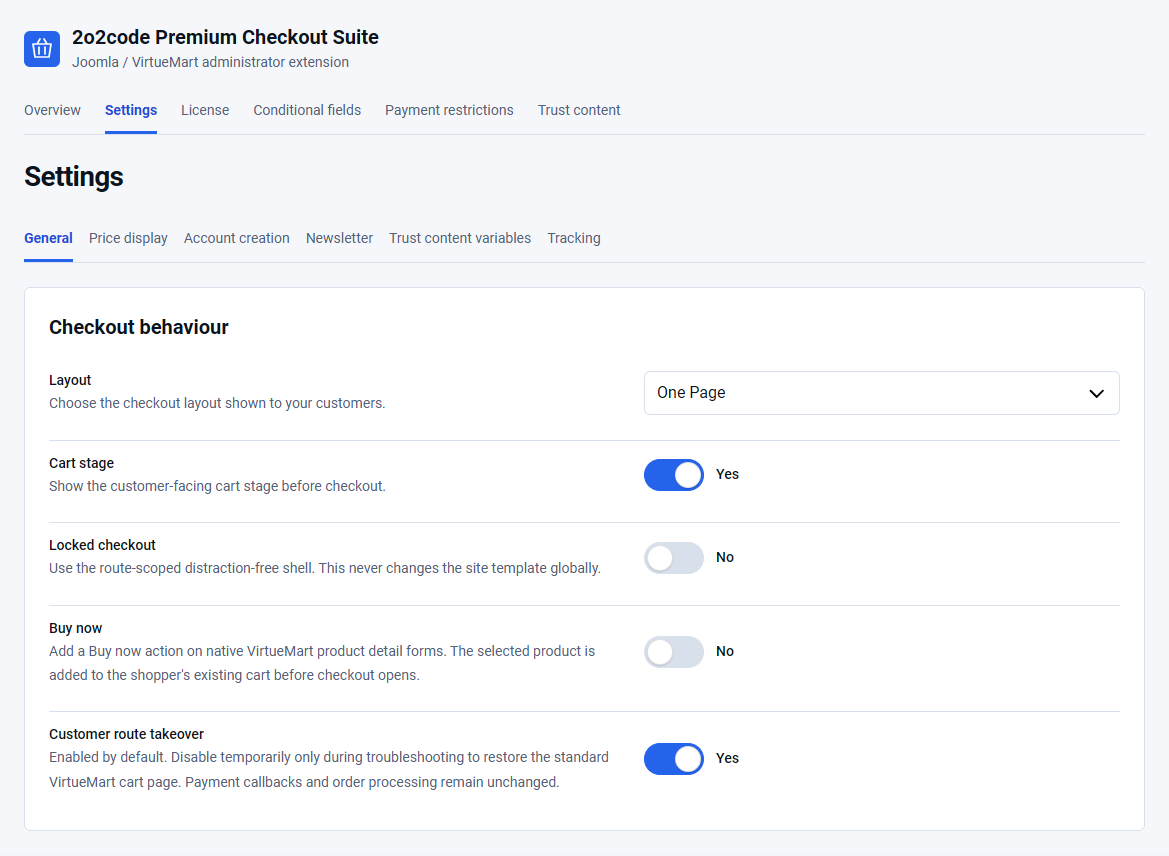
Open Components – Premium Checkout Suite – Settings – General and use Layout.
One Page
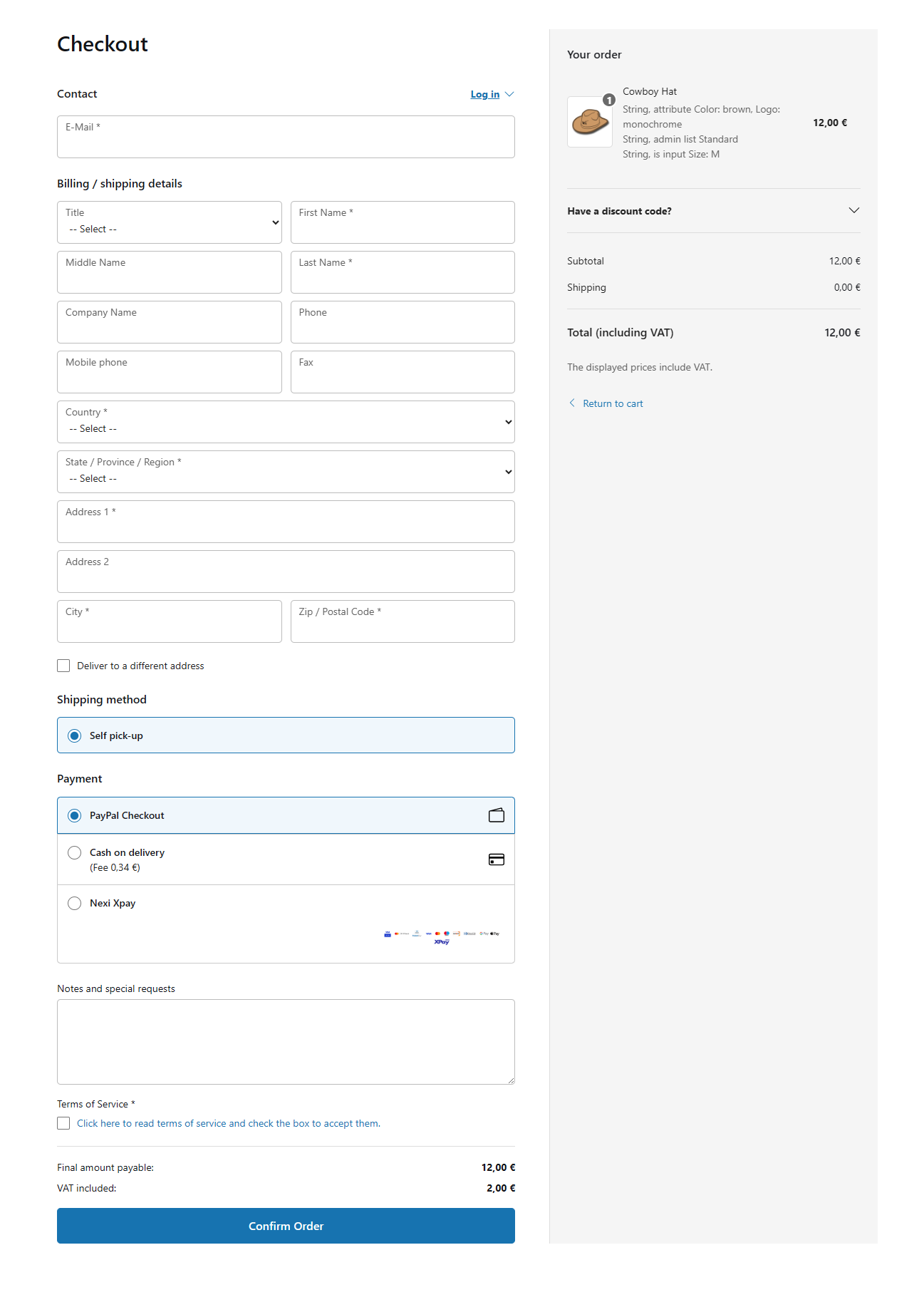
Shows customer details, delivery, payment, order review and confirmation controls in one continuous page. This is the default.
Multistep
Guides the shopper through focused stages and shows a final review before Confirm Order.
Choose One Page for familiar, compact checkout flows. Choose Multistep when a store has many fields or benefits from a guided sequence.
General settings define the active checkout layout and the optional cart, locked checkout, Buy now and route-takeover behaviour.
02
Configure the Cart stage
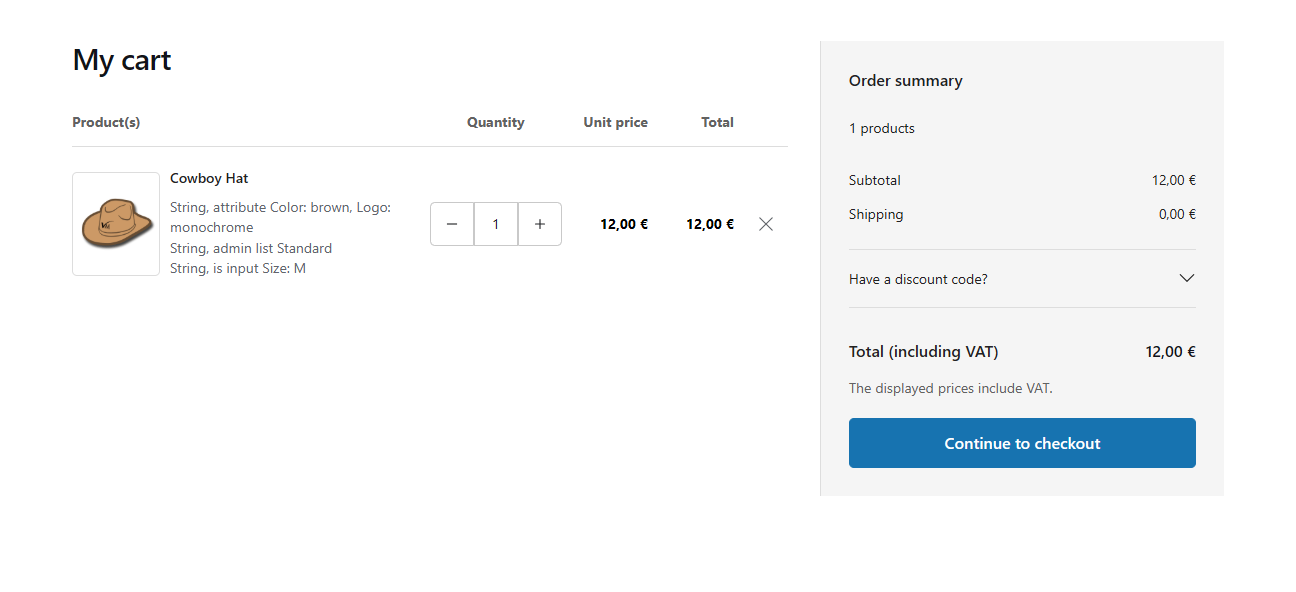
Cart stage is enabled by default. It shows a customer-facing cart before checkout where shoppers can review multiple products, change quantities and remove items.
Enable Cart stage.
Save the settings.
Add at least two products from the storefront.
Open the cart and change a quantity.
Remove one item and confirm that VirtueMart recalculates the native totals.
Quantity changes and product removal also refresh the mini cart. Removing the last item displays the complete, correctly styled empty-cart state immediately, without a page refresh.
ExampleA shopper adds two shirts, changes one quantity from 1 to 2 and removes the other. The remaining line and all totals must match the VirtueMart cart.
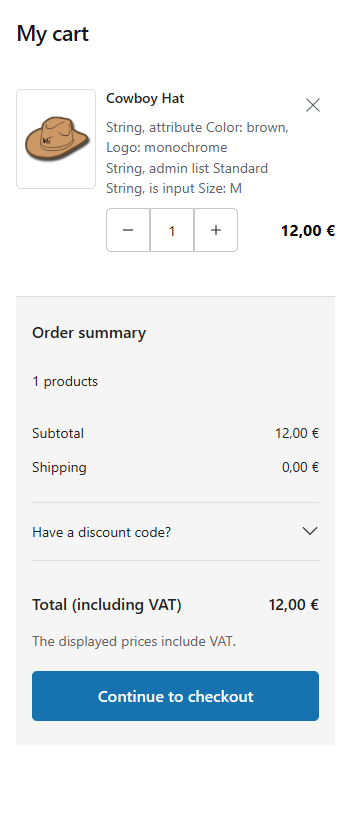
Desktop cart with editable quantity and native totals.The same cart stacks without horizontal scrolling on mobile.
03
Use the One Page layout
Select One Page under Layout.
Keep Customer route takeover enabled.
Save and open the storefront checkout.
Complete billing details, optional delivery details, shipment and payment choices.
Accept the native terms when required and submit the order once.
On narrow screens the layout stacks vertically. Native payment and shipment provider markup remains in place so provider controls continue to work.
One Page keeps customer details, eligible methods and the authoritative order summary together.On mobile, the checkout controls remain readable in a single vertical flow.
04
Use the Multistep layout
Select Multistep under Layout.
Save and reopen the checkout.
Move through the customer, delivery and payment stages.
Review products, addresses, shipment, payment and totals.
Select Confirm Order only after the review is correct.
Validation keeps the shopper on the relevant stage when required information is missing. Completed information remains available when moving backward.
05
Understand the checkout behaviour settings
Customer route takeover
Enabled by default. It sends the customer-facing cart and checkout routes through Premium Checkout Suite while preserving payment returns and order processing. Disable it temporarily only for troubleshooting.
Buy now
Disabled by default. When enabled, it adds a Buy now action to native VirtueMart product forms. The selected product is added to the shopper’s existing cart before checkout opens. Existing cart items are not discarded.
Locked checkout
Disabled by default. It uses a route-scoped, distraction-free shell only for cart and checkout pages. It does not change the Joomla template globally.
Cart stage versus Buy now Cart stage controls whether the shopper sees a separate cart page. Buy now is a product-page shortcut that adds the selected item and opens checkout. Neither setting changes VirtueMart’s stored cart.
06
Success page and print view
After native order creation, the success page can show the order number and status, billing and delivery details, shipment, payment instructions, products, quantities, discounts, shipping, tax and final total.
The print action opens a read-only confirmation. Printing cannot create another order, repeat a payment action, resend email, create an account or repeat an analytics purchase event.
A pending order remains pending until VirtueMart or the payment provider authoritatively confirms another state. The page does not treat a visual browser return as proof of payment.
07
Test every enabled flow
Test with one product and multiple products.
Change quantities and remove an item.
Test an empty cart.
Test as a guest and as a signed-in customer.
Test at desktop width and on a phone.
Confirm that the final totals equal the native VirtueMart totals.
Submit one order and verify that only one VirtueMart order exists.
When something looks wrong Temporarily disable Customer route takeover. If the same price, method or validation issue exists in the native VirtueMart cart, correct the VirtueMart or provider configuration first.
Use native VirtueMart shopper fields and add guided display rules without weakening required-field validation.
On this page
01
Shopper fields come from VirtueMart
Premium Checkout Suite reads the published VirtueMart shopper fields, their ordering, required state and address context. Create, publish and order fields in the native VirtueMart shopper-field manager.
Use VirtueMart to create or rename a field.
Use VirtueMart to decide whether it is required.
Use VirtueMart to decide whether it belongs to billing, delivery or registration.
Use Premium Checkout Suite conditional rules only for contextual show, hide or require behaviour.
02
Country and State/Region
The State/Region choices depend on the selected Country and the states configured in VirtueMart. If the list is empty, first confirm that the country has published states and that the country field appears before the state field.
Open the checkout as a guest.
Select the country.
Wait for the state choices to refresh.
Select a state and continue.
If State/Region is missing Check the native VirtueMart country and state records, field publication and ordering. The extension does not invent state data.
03
Different delivery address
When the store permits alternative delivery details, the shopper can choose a separate address. Billing and delivery fields keep their native VirtueMart address contexts.
Test both paths: one order that uses the billing address for delivery and one that enters a separate delivery address. Confirm that the success and print views show the correct address once, without duplicated native blocks.
04
Signed-in customer details
Signed-in shoppers can see account-backed details in a protected, read-only presentation. The Edit details action opens the appropriate native account workflow instead of allowing unsafe browser-only changes to authoritative account data.
Always test the flow as a guest, a normal retail customer and any wholesale shopper group used by the store.
05
Create a guided conditional-field rule
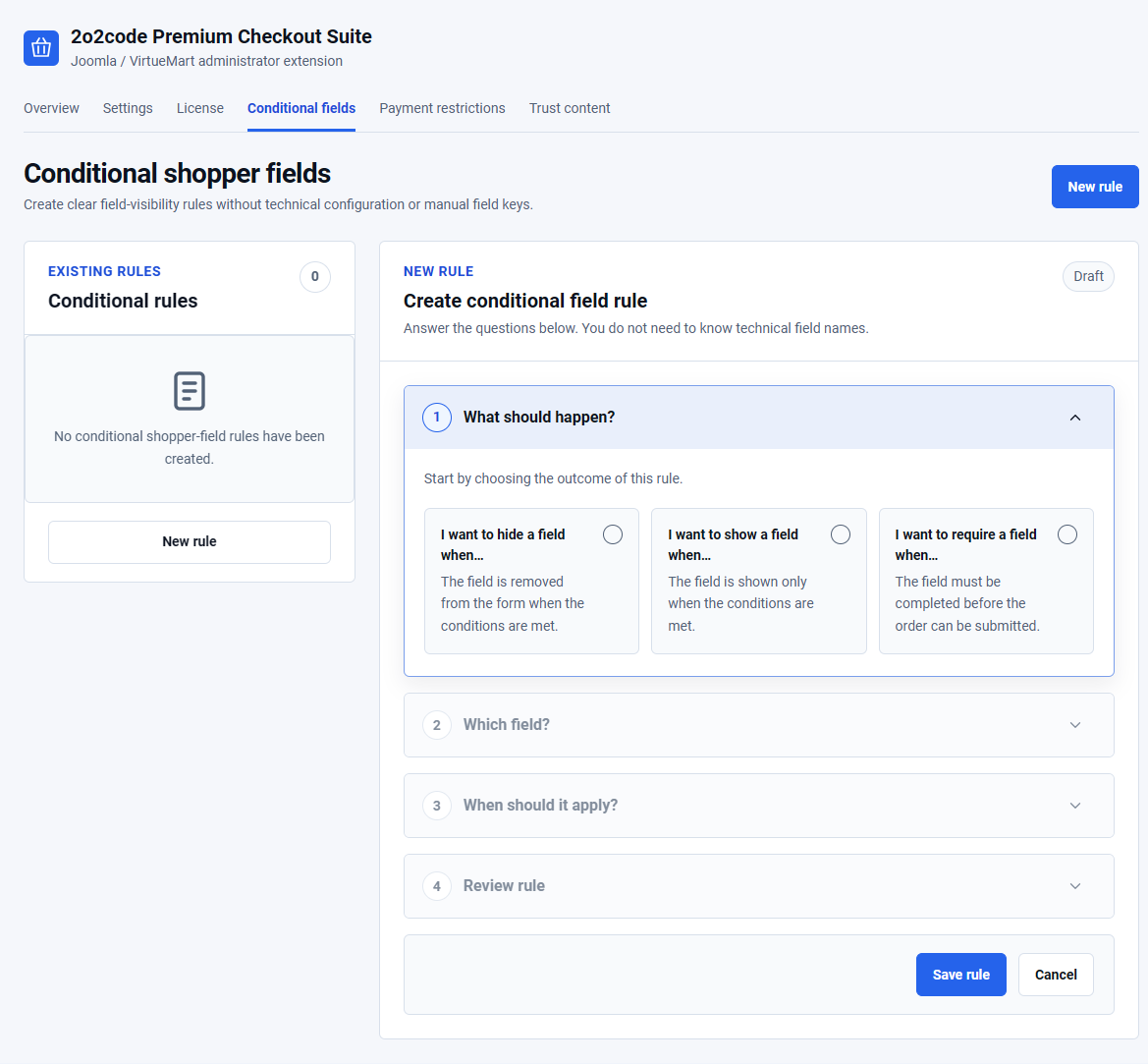
Open Components – Premium Checkout Suite – Conditional fields and select New rule. The builder asks for one choice at a time.
Choose the field affected by the rule.
Choose Show when matched, Hide when matched or Require when matched.
Choose Billing / primary, Alternative delivery or Both.
Select Match all or Match any.
Add one or more conditions.
Review the summary and save the rule.
Enable the rule after checking its meaning.
Condition sources include shopper fields, payment method, shipment method, cart product, cart category and shopper group. Available comparisons include equals, does not equal, contains, does not contain, is one of, is not one of, empty and not empty.
Required fields stay safe
If a rule hides a field that VirtueMart normally requires, the server applies the reviewed conditional result. Do not use template edits or browser scripts to bypass required-field validation.
The guided builder starts with the intended outcome and then reveals the field, conditions and review steps.
06
Practical rule examples
Show a company field
Show VAT number when Customer type equals Business. Apply it to Billing / primary.
Require delivery instructions
Require Delivery instructions when Shipment method equals Local delivery.
Hide a field for pickup
Hide Delivery notes when Shipment method equals Store pickup.
Wholesale information
Show Purchase order reference when Shopper group is one of the approved wholesale groups.
Use the actual field and method names available in the current website. A missing or unpublished source cannot match a rule.
07
Verify a conditional rule
Open a private storefront window.
Reach the checkout with a product that satisfies the intended scenario.
Change the source value and confirm the field responds.
Submit without the field when it should be optional or hidden.
Submit without the field when it should be required and confirm validation blocks the order.
Repeat with the rule disabled and confirm normal VirtueMart behaviour returns.
If a rule does not run, confirm that it is enabled, its field still exists, its address context is correct and all referenced methods, products, categories or shopper groups are published.
Keep VirtueMart authoritative while presenting eligible methods, shopper-group pricing, VAT and discounts clearly.
On this page
01
VirtueMart decides real eligibility
VirtueMart and each shipment or payment plugin decide whether a method can serve the current order. They can consider address, country, shopper group, order total, currency, product restrictions and plugin configuration.
Premium Checkout Suite presents the methods VirtueMart returns. It cannot make an unpublished, incompatible or rejected method available.
No payment method If no payment method is eligible, the order cannot be submitted. Review the method’s native minimum amount, shopper-group and country rules before changing the checkout presentation.
02
Create shipment-dependent payment restrictions
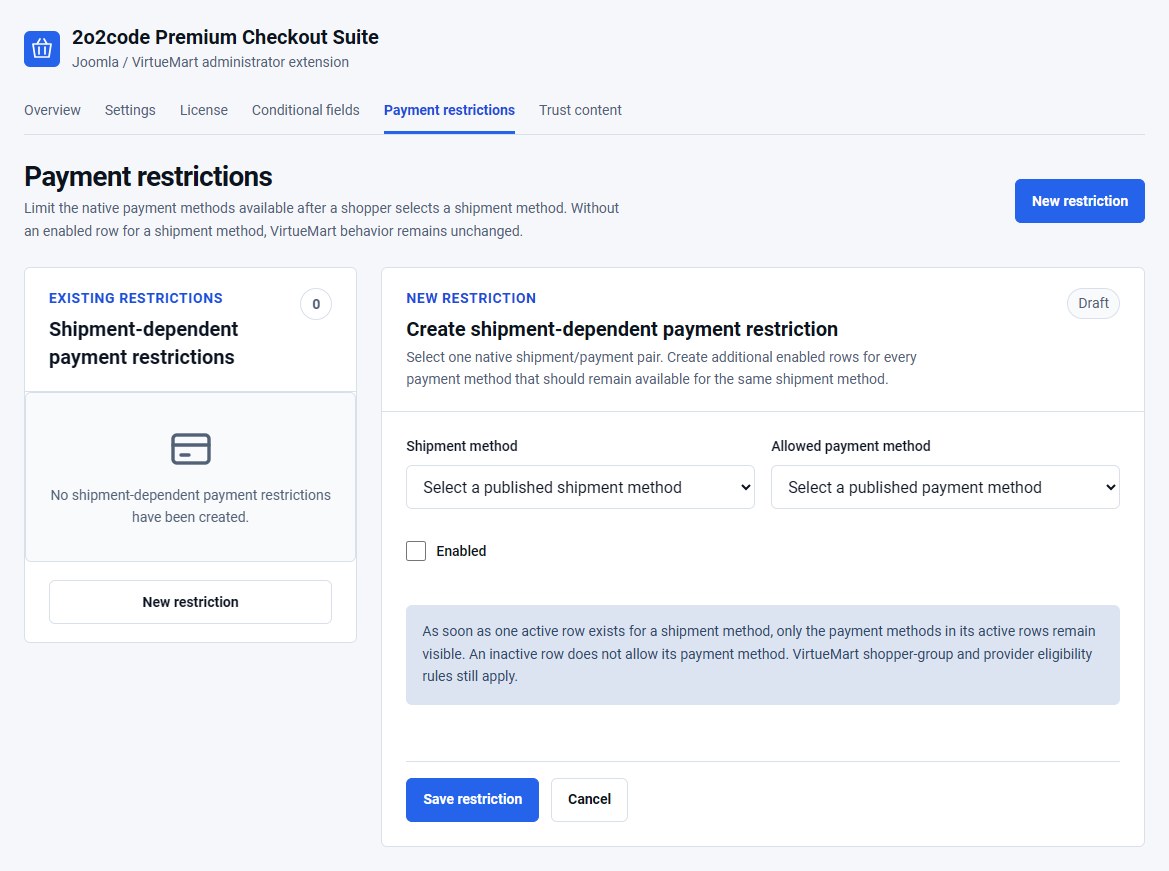
Open Components – Premium Checkout Suite – Payment restrictions.
Create another enabled row for every additional payment method that should remain available with the same shipment method.
When at least one enabled row exists for a shipment method, only the payment methods in its enabled rows remain visible. An inactive row allows nothing. When no enabled row exists for a shipment method, native VirtueMart behaviour remains unchanged.
Restrictions never grant access
A rule can remove a payment method that VirtueMart considers eligible. It cannot enable a payment method that VirtueMart or its provider has already rejected.
Each enabled row keeps one native shipment and payment pair available; it never overrides VirtueMart eligibility.
03
Example: retail and wholesale delivery
Suppose Local delivery may use Card or Cash on delivery, while Freight may use Bank transfer only.
Create Local delivery + Card.
Create Local delivery + Cash on delivery.
Create Freight + Bank transfer.
Enable all three rows.
Confirm that the native payment plugins also permit those shopper groups and order totals.
Test with a safe offline method or a provider sandbox. Do not place a real charge only to verify a visibility rule.
04
Shopper groups, prices and VAT
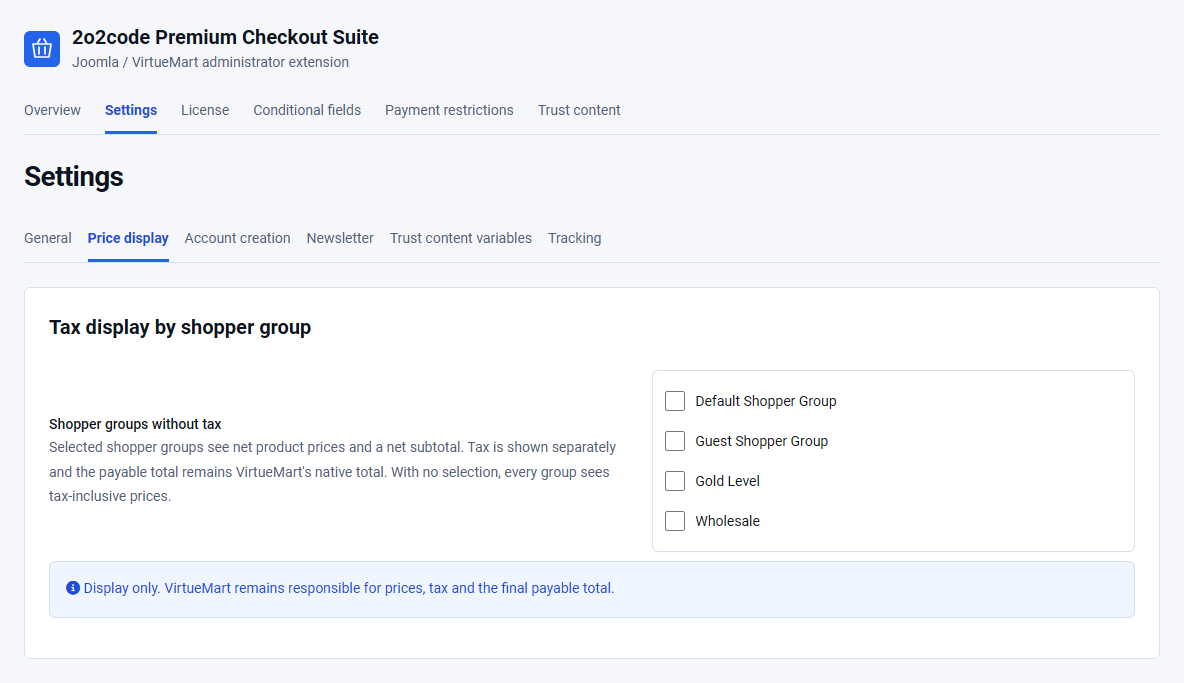
Open Premium Checkout Suite – Settings – Price display. The Shopper groups without tax field is empty by default, so all groups see tax-inclusive product prices.
Selected groups see net product prices and a net subtotal. VAT remains visible as a separate amount, and the payable total remains the authoritative total calculated by VirtueMart.
Use this setting only for the shopper groups that should see net display prices.
Do not use it to alter tax calculation or tax liability.
Confirm subtotal, discount, shipment, payment fee, tax and final total against the native VirtueMart calculation.
With no group selected, every shopper group sees tax-inclusive product prices.
05
Coupons and discounts
Coupon validation remains native to VirtueMart. Customers can apply or remove a coupon from the cart or checkout when the store configuration permits it.
An empty coupon value should not create a discount.
An invalid or expired coupon should show the native failure message.
Minimum amount, shopper-group, product and category restrictions still apply.
Product discounts and coupon discounts remain separate amounts.
A crossed-out original price must agree with the current final product price.
After applying or removing a coupon, verify the updated subtotal, discount, VAT and payable total.
When a provider supports installments or another provider-specific option, its plugin remains responsible for the control and validation. Premium Checkout Suite preserves the native provider markup.
Configure optional AcyMailing consent, post-purchase accounts, store assurances, locked checkout branding, Umami and Beta GA4/GTM tracking.
On this page
01
AcyMailing newsletter consent
AcyMailing must be installed, active and have at least one active list. Newsletter consent is disabled by default.
Open Premium Checkout Suite – Settings – Newsletter.
Enable Newsletter consent.
Keep Newsletter provider on AcyMailing.
Under Newsletter list by shopper group, choose the list for each relevant VirtueMart shopper group.
Save and test with a customer in that group.
The unchecked consent appears only when the provider and a mapped active list are available. Subscription runs after order creation and only after explicit consent.
Multiple groups If a shopper belongs to more than one mapped group, one explicit consent subscribes the shopper to each distinct mapped list.
Verify the result inside AcyMailing. If the checkbox is missing, confirm that AcyMailing is active, the list is active and the current shopper group has a mapping.
02
Optional account creation after checkout
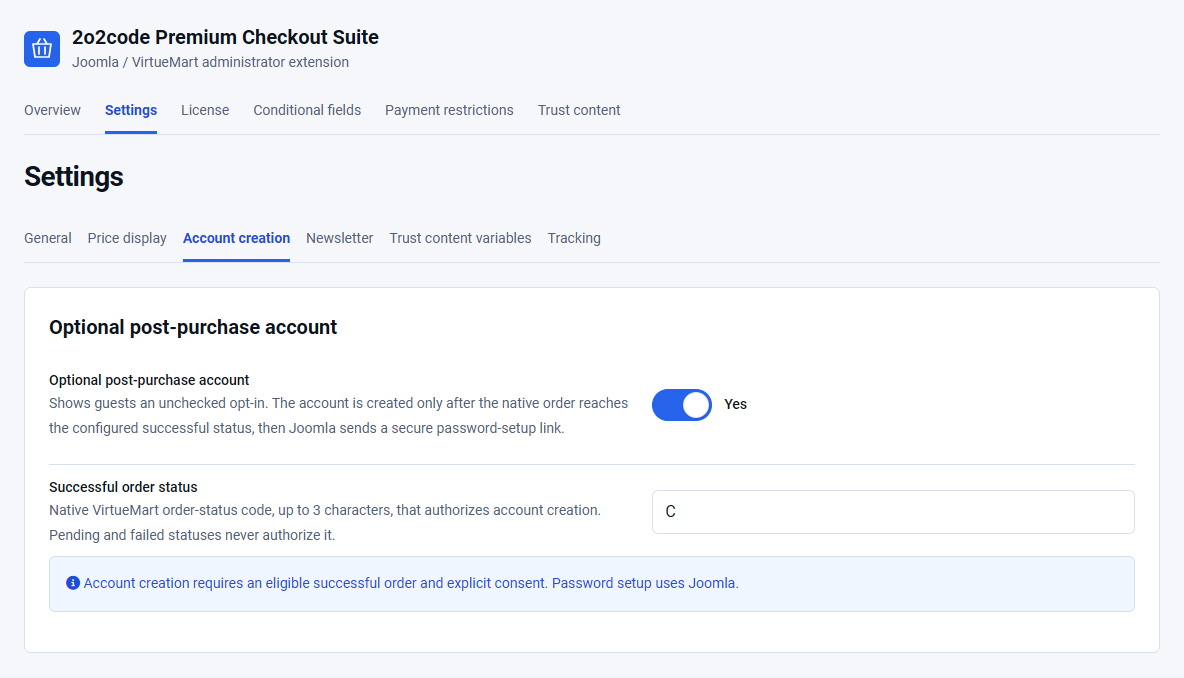
Optional post-purchase account is enabled by default, while the customer checkbox remains unchecked.
Open Premium Checkout Suite – Settings – Account creation.
Enable Optional post-purchase account.
Set Successful order status to the native VirtueMart status that authorizes account creation. The default is C.
Place a guest order and opt in.
Move the order to the configured successful state if the payment flow does not do so automatically.
Joomla sends a secure password-setup link. No plaintext password is created or sent. If the email already belongs to an account, duplicate creation is safely skipped. An account-creation failure must not roll back or hide the native order.
Account creation remains opt-in and runs only after the native order reaches the configured successful status.
03
Create trust content
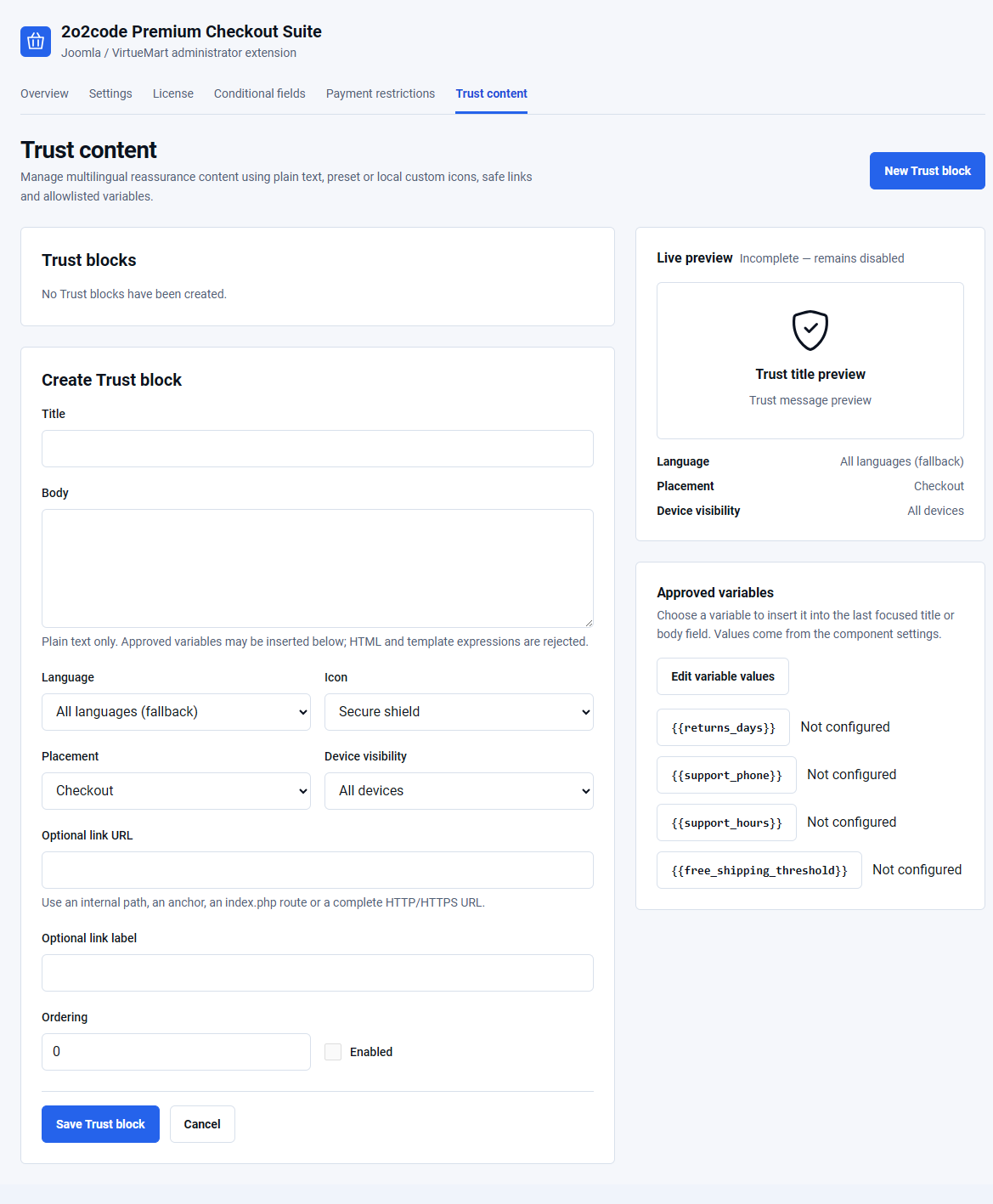
Open Components – Premium Checkout Suite – Trust content and create a concise, accurate store assurance.
Enter a short Title and plain-language Body.
Choose the language.
Select shield, truck, refresh or headset, or choose a local image through Joomla Media Manager.
Select Checkout or Order completion placement.
Choose device visibility, optional link, ordering and publication state.
Save and inspect the relevant storefront page.
Custom images must be local Joomla Media files. External image URLs are rejected. Safe variables can use the values configured in Settings, including returns days, support phone, support hours and free shipping threshold.
Use factual claims
Do not promise delivery times, returns or free shipping unless the store can consistently meet the published statement.
Trust content uses plain text, local icons, controlled placement and allowlisted variables.
04
Locked checkout branding
Enable Locked checkout in General settings to use the distraction-free shell only on cart and checkout routes.
Active template logo: uses the logo configured by the active Joomla template. If no file exists, the site title is used.
Separate checkout logo: uses the local image selected in Checkout logo image.
Locked checkout footer: accepts safe basic formatting and links. Leave it empty to render no footer.
The separate checkout logo takes effect only when that source is selected. Confirm the result at desktop and mobile sizes and ensure the logo remains readable.
05
Tracking and privacy
Choose the analytics connection that your store uses. The default Internal event model only sends nothing to an external analytics service. Tracking never controls checkout or order success.
Connect Umami to checkout completion
The Umami connection sends an event named checkout_completed when an eligible order reaches the completion page. You do not need to write JavaScript to create this event.
What you need
A working Umami website and tracker on your store.
The same tracker loaded on the order confirmation or payment-return page, as well as cart and checkout.
The exact analytics-consent cookie name and accepted value used by your store’s cookie banner, when consent is required.
Premium Checkout Suite does not install the Umami tracker. Set up the tracker separately before connecting it here.
What to select and enter
Open Components → Premium Checkout Suite → Settings.
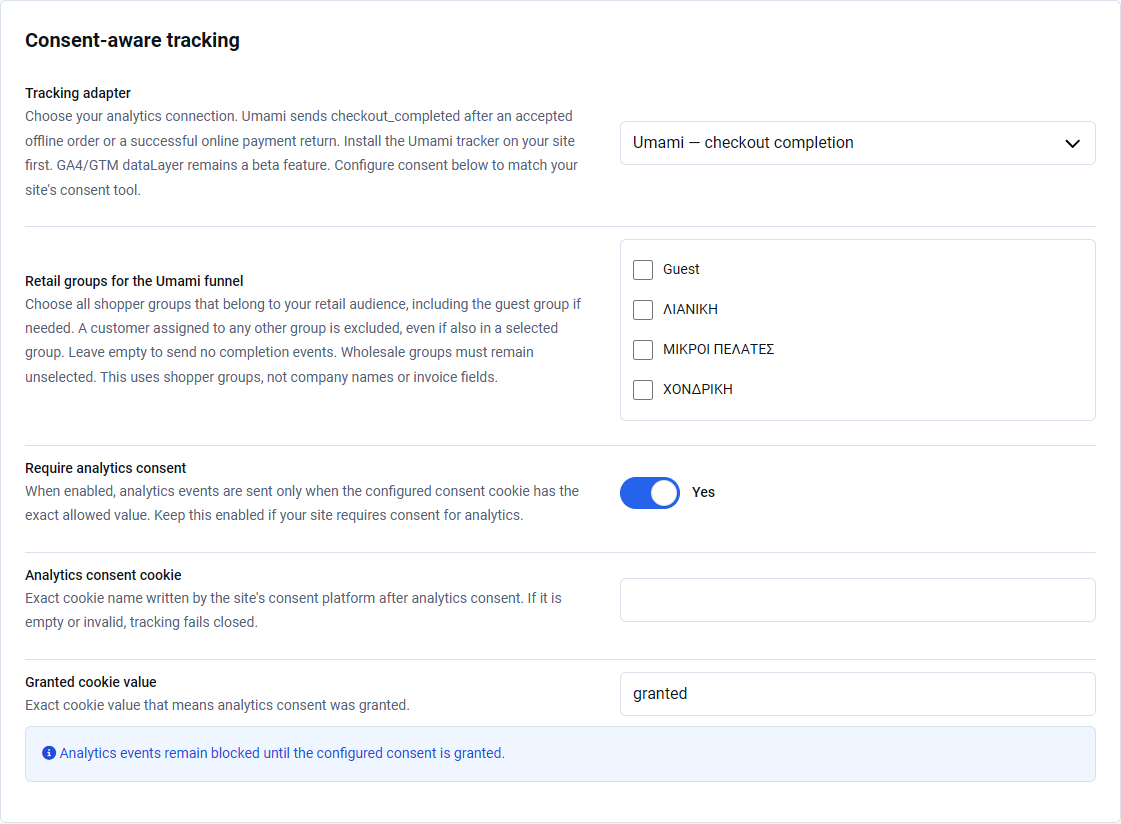
Select Tracking. The panel is headed Consent-aware tracking.
Set Tracking adapter to Umami — checkout completion.
In Retail groups for the Umami funnel, select all shopper groups that belong to your retail audience. Include your store’s guest group if you want guest orders to count.
Keep Require analytics consent enabled when analytics consent is required for your store.
Enter the exact cookie name from your cookie banner in Analytics consent cookie.
Enter that banner’s exact accepted value in Granted cookie value.
Click Save.
Umami settings in Premium Checkout Suite 1.0.4. Use your own shopper groups and your cookie banner’s exact consent mapping. No groups are selected in this example, so no completion events would be sent. View full-size screenshot.
Which shopper groups count?
An empty group selection sends no completion events. A customer who also belongs to any unselected group is excluded, even if they belong to a selected retail group.
For example, select your Guest and Retail groups and leave Wholesale unselected. A retail-only customer can qualify. A customer assigned to both Retail and Wholesale does not qualify. Use the equivalent groups in your own store.
Match your cookie banner Cookie names and accepted values differ between stores. Both must match exactly. A missing or mismatched consent grant prevents tracking. Do not turn off required consent to solve a missing-event problem.
When is an order counted?
An accepted order using a supported offline payment method can qualify. This does not mean that you have received payment.
An online order qualifies after a verified successful payment outcome. Failed, cancelled or unconfirmed online payments do not count as completed.
Refreshing the confirmation page or returning again does not create a second completion event for the same order.
The checkout_completed event contains no customer details, order number, amounts, products or payment-return details. It is a completion signal, not a revenue or product report.
Missing consent, a blocked tracker or leaving the page can prevent recording. Analytics cannot guarantee that every order appears in Umami.
Build an Umami funnel
A funnel shows how visitors move through the steps before completion.
Open the correct website in Umami and go to Funnel.
Click Add funnel.
Use Add to create the earlier steps. Choose Viewed page for your store’s actual cart and checkout URLs. If you already track an add-to-cart event, you can add it as a Triggered event step.
Add a final step of type Triggered event.
Enter the exact event name checkout_completed.
Set a suitable Window for the time allowed between steps, then click Save.
Run the insight after eligible events have been recorded.
Steps must occur in order; visitors may visit other pages or events between them. The Umami connection does not create earlier funnel events. You do not need a new /success.html URL, and payment URLs stay unchanged.
On a test store, place a new test order using a supported offline method or your payment provider’s test mode. Do not make a real charge just to check analytics.
Use a shopper in the selected retail groups and grant analytics consent through the store’s cookie banner.
Complete the order and keep its confirmation or payment-return page open long enough for the tracker to load.
Open the same website in Umami and check for checkout_completed. Then check the funnel for the chosen time range.
Refresh the confirmation page. It should not add another completion event for that order.
If no event appears, check:
Is the correct Umami tracker loaded on the completion page?
Is Umami — checkout completion selected, and were the settings saved?
Are all of the customer’s shopper groups selected? Is the guest group included when needed?
Has the required consent been granted, with the exact cookie name and value?
Does the order meet the completion conditions described above?
Are you viewing the correct Umami website and time range?
GA4/GTM dataLayer (Beta)
Beta integration
The GA4/GTM dataLayer adapter requires production end-to-end verification with the website’s real consent platform and analytics configuration.
Select Consent-aware GA4/GTM dataLayer (Beta) as the Tracking adapter.
Keep Require analytics consent enabled when required.
Enter your consent platform’s exact Analytics consent cookie and Granted cookie value.
Save and test both denied and granted consent states.
When consent is required, an empty, invalid or mismatched cookie mapping keeps tracking disabled. Events use a minimized allowlist and must not contain customer names, email addresses, postal addresses or payment secrets.
Review order confirmation behaviour, protected updates and practical fixes for common configuration problems.
On this page
01
Order confirmation
The success page reflects the authoritative VirtueMart order. Depending on the order and provider, it can show:
order number and current status;
billing and delivery details;
shipment and payment information;
products, quantities and prices;
discounts, shipment charges, payment fees, VAT and payable total;
native payment-provider instructions and actions.
Pending and confirmed orders remain visually distinct. Native provider information is kept, while duplicate order numbers, totals or View Order links inside nested provider output are removed.
02
Print the confirmation safely
Use the Print action from the order confirmation. The print view is read-only and includes the customer-facing order information needed for a useful record.
Opening or printing the page cannot resubmit the order, repeat a payment action, send another email, create another account or repeat the purchase analytics event.
03
Install protected Joomla updates
Confirm that the installation license is Active.
Back up the website and database.
Open System – Update – Extensions.
Select Check for Updates.
Review the available version and changelog.
Install the update through Joomla.
Clear only the normal Joomla cache and test cart plus checkout entry.
Version 1.0.4 preserves your existing settings, licenses and orders. It adds the Umami connection and improves cart refreshes and checkout presentation. See the product changelog for the full update notes.
Cart, checkout and completion pages are excluded from Joomla’s native whole-page cache. If you use a separate third-party cache, check its own exclusions for these private pages.
Protected package delivery requires current update entitlement. Never copy or share the Download Key displayed by Joomla’s Update Sites interface.
Expired license An already activated installation keeps its existing operational checkout functionality. Updates, support and new activations stop.
04
Troubleshooting
No payment methods appear
Check native payment publication, country, shopper group, currency and minimum amount rules. Then review enabled shipment-dependent payment restrictions. Disable the restriction temporarily to compare native VirtueMart behaviour.
State/Region does not appear
Confirm that the selected country has published states in VirtueMart and that Country appears before State/Region in the native shopper-field order.
The checkout is empty
Confirm that the VirtueMart cart contains a valid product. Temporarily disable Customer route takeover and check the native cart for the same issue.
Buy now does not appear
Confirm that Buy now is enabled, the product uses a native VirtueMart product form and the active template has not removed the relevant product-form event.
A coupon is not applied
Check expiry, minimum amount, shopper-group, product and category rules in VirtueMart. The extension does not override native coupon validation.
The newsletter checkbox is missing
Confirm that Newsletter consent is enabled, AcyMailing is active, an active list exists and the current shopper group has a list mapping.
An account is not created
Confirm that the guest opted in and the native order reached the configured Successful order status. Existing account emails are deliberately not duplicated.
A custom logo or trust icon is missing
Use a local image selected through Joomla Media Manager. For a checkout logo, select Separate checkout logo as the branding source and confirm Locked checkout is enabled.
No update is available
Check License status, protected-update connection and the extension update site. A temporary update connection problem does not disable existing checkout operation.
License activation fails
For a Production license, use the live store’s final public HTTPS address. On an eligible local website, use the Local license section, headed Local site license, and select Activate on this local site. Check that your license key is active and that the server can make outgoing HTTPS connections. See local license activation instructions. Do not copy license data from another installation.
Prices or VAT look wrong
Compare the values with the native VirtueMart cart. Review tax rules and shopper-group assignments in VirtueMart, then review Shopper groups without tax in Premium Checkout Suite.
The Joomla template or another extension conflicts
Disable Customer route takeover temporarily. If native VirtueMart works, record the template and extension versions and contact support with privacy-safe screenshots and exact reproduction steps.
05
Frequently asked questions
Does Premium Checkout Suite replace VirtueMart?
No. VirtueMart remains responsible for the cart, prices, taxes, coupons, shipment and payment eligibility, orders, callbacks and statuses.
Can I use One Page and Multistep at the same time?
No. Select one active checkout layout. You can change it later and test the new customer flow.
Does Buy now delete the current cart?
No. It adds the selected product to the shopper’s existing cart before opening checkout.
Can payment restrictions enable a rejected method?
No. Restrictions can only remove methods from the eligible native result.
Is AcyMailing required?
No. It is required only when the optional newsletter consent integration is enabled.
Does Internal tracking send analytics data?
No. The Internal event model sends nothing to an external service. The dataLayer adapter is Beta and requires consent-aware production testing.
Does an expired license stop checkout?
No. An already activated installation keeps its existing operational functionality, while updates, support and new activations stop.
06
Prepare a useful support request
Include Joomla, VirtueMart, PHP and Premium Checkout Suite versions, the affected layout, the expected result, the actual result and reproducible steps. Use synthetic data in screenshots.
Never send license keys, Joomla Download Keys, Freemius tokens, customer details, payment credentials or complete private order data.
Open the relevant chapter first. If the issue remains, contact support with your Joomla, VirtueMart and extension versions and a privacy-safe description of the result.