AcyMailing newsletter consent
AcyMailing must be installed, active and have at least one active list. Newsletter consent is disabled by default.
- Open Premium Checkout Suite – Settings – Newsletter.
- Enable Newsletter consent.
- Keep Newsletter provider on AcyMailing.
- Under Newsletter list by shopper group, choose the list for each relevant VirtueMart shopper group.
- Save and test with a customer in that group.
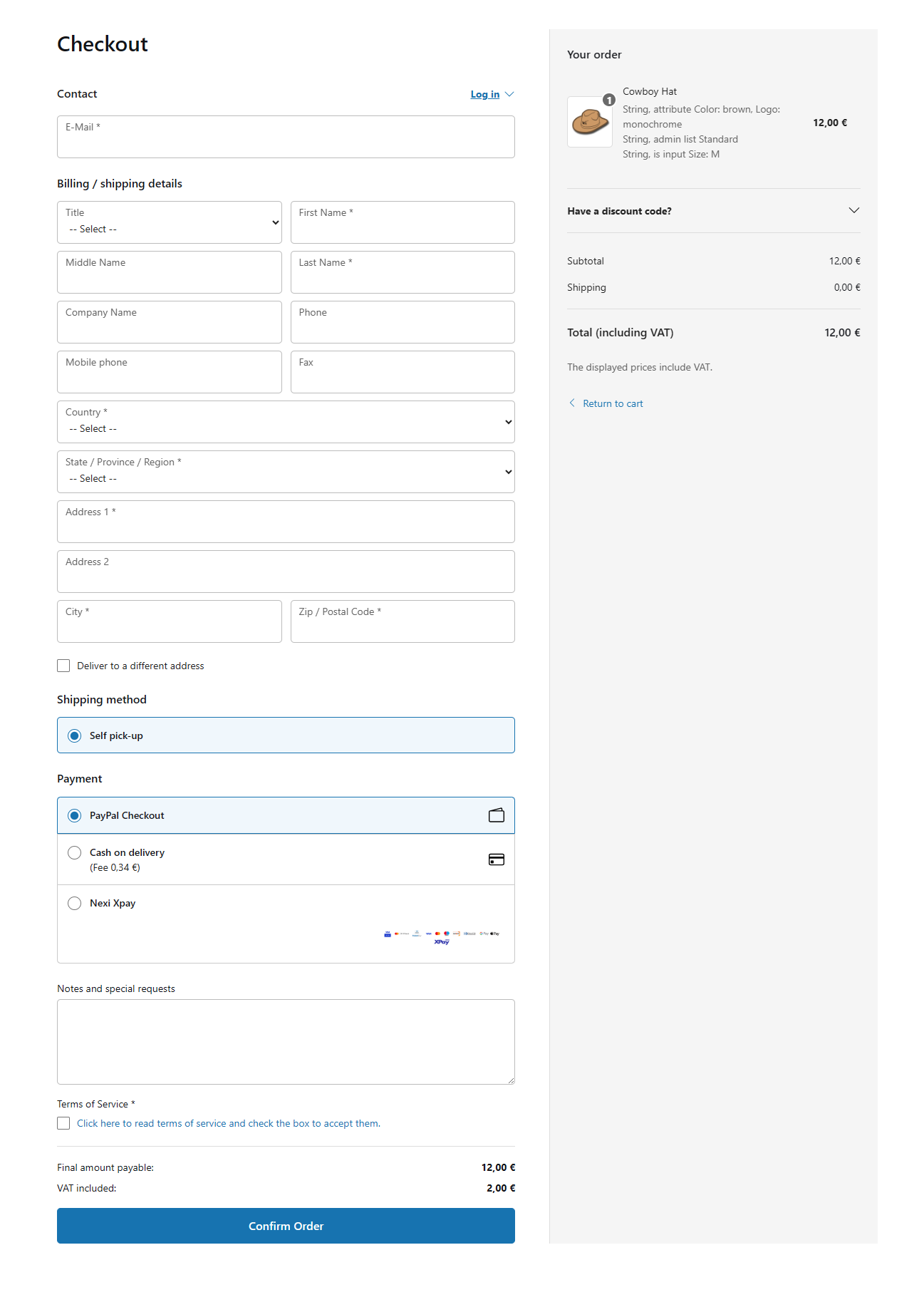
The unchecked consent appears only when the provider and a mapped active list are available. Subscription runs after order creation and only after explicit consent.
If a shopper belongs to more than one mapped group, one explicit consent subscribes the shopper to each distinct mapped list.
Verify the result inside AcyMailing. If the checkbox is missing, confirm that AcyMailing is active, the list is active and the current shopper group has a mapping.
Optional account creation after checkout
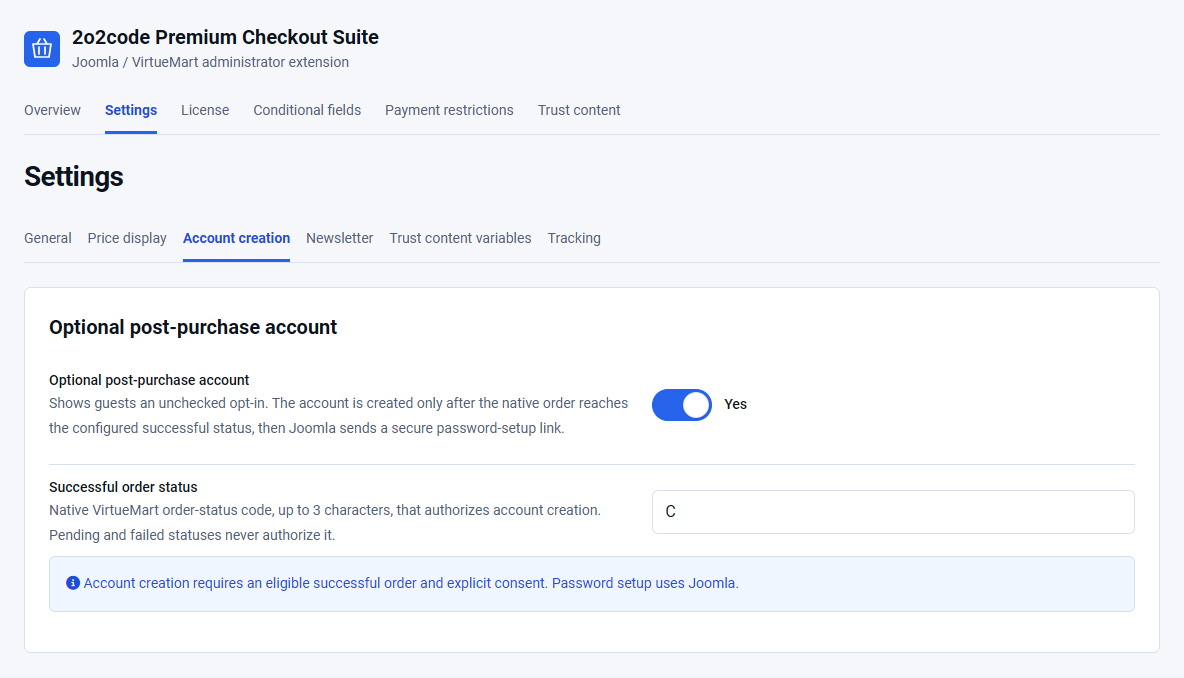
Optional post-purchase account is enabled by default, while the customer checkbox remains unchecked.
- Open Premium Checkout Suite – Settings – Account creation.
- Enable Optional post-purchase account.
- Set Successful order status to the native VirtueMart status that authorizes account creation. The default is
C. - Place a guest order and opt in.
- Move the order to the configured successful state if the payment flow does not do so automatically.
Joomla sends a secure password-setup link. No plaintext password is created or sent. If the email already belongs to an account, duplicate creation is safely skipped. An account-creation failure must not roll back or hide the native order.
Create trust content
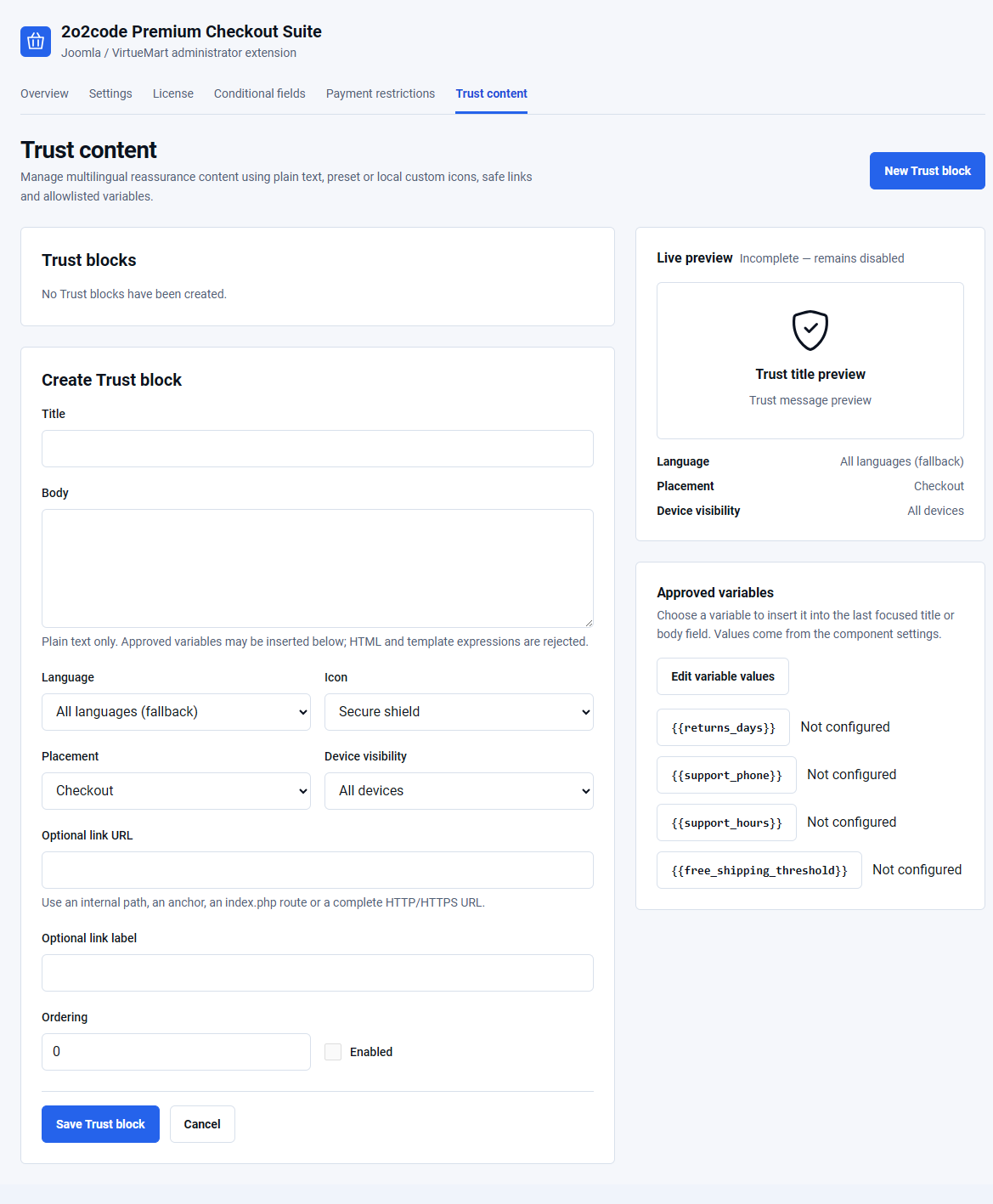
Open Components – Premium Checkout Suite – Trust content and create a concise, accurate store assurance.
- Enter a short Title and plain-language Body.
- Choose the language.
- Select shield, truck, refresh or headset, or choose a local image through Joomla Media Manager.
- Select Checkout or Order completion placement.
- Choose device visibility, optional link, ordering and publication state.
- Save and inspect the relevant storefront page.
Custom images must be local Joomla Media files. External image URLs are rejected. Safe variables can use the values configured in Settings, including returns days, support phone, support hours and free shipping threshold.
Do not promise delivery times, returns or free shipping unless the store can consistently meet the published statement.
Locked checkout branding
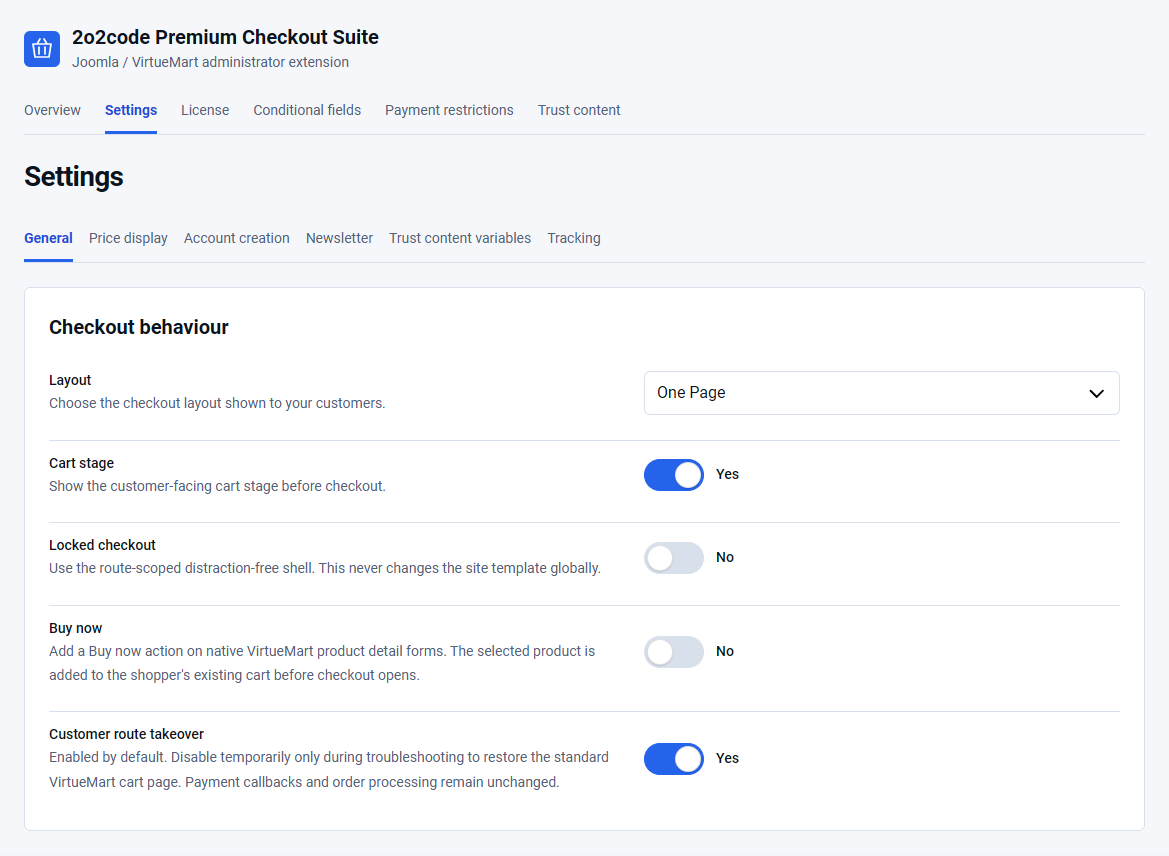
Enable Locked checkout in General settings to use the distraction-free shell only on cart and checkout routes.
- Active template logo: uses the logo configured by the active Joomla template. If no file exists, the site title is used.
- Separate checkout logo: uses the local image selected in Checkout logo image.
- Locked checkout footer: accepts safe basic formatting and links. Leave it empty to render no footer.
The separate checkout logo takes effect only when that source is selected. Confirm the result at desktop and mobile sizes and ensure the logo remains readable.
Tracking and privacy
Choose the analytics connection that your store uses. The default Internal event model only sends nothing to an external analytics service. Tracking never controls checkout or order success.
Connect Umami to checkout completion
The Umami connection sends an event named checkout_completed when an eligible order reaches the completion page. You do not need to write JavaScript to create this event.
What you need
- A working Umami website and tracker on your store.
- The same tracker loaded on the order confirmation or payment-return page, as well as cart and checkout.
- The exact analytics-consent cookie name and accepted value used by your store’s cookie banner, when consent is required.
Premium Checkout Suite does not install the Umami tracker. Set up the tracker separately before connecting it here.
What to select and enter
- Open Components → Premium Checkout Suite → Settings.
- Select Tracking. The panel is headed Consent-aware tracking.
- Set Tracking adapter to Umami — checkout completion.
- In Retail groups for the Umami funnel, select all shopper groups that belong to your retail audience. Include your store’s guest group if you want guest orders to count.
- Keep Require analytics consent enabled when analytics consent is required for your store.
- Enter the exact cookie name from your cookie banner in Analytics consent cookie.
- Enter that banner’s exact accepted value in Granted cookie value.
- Click Save.
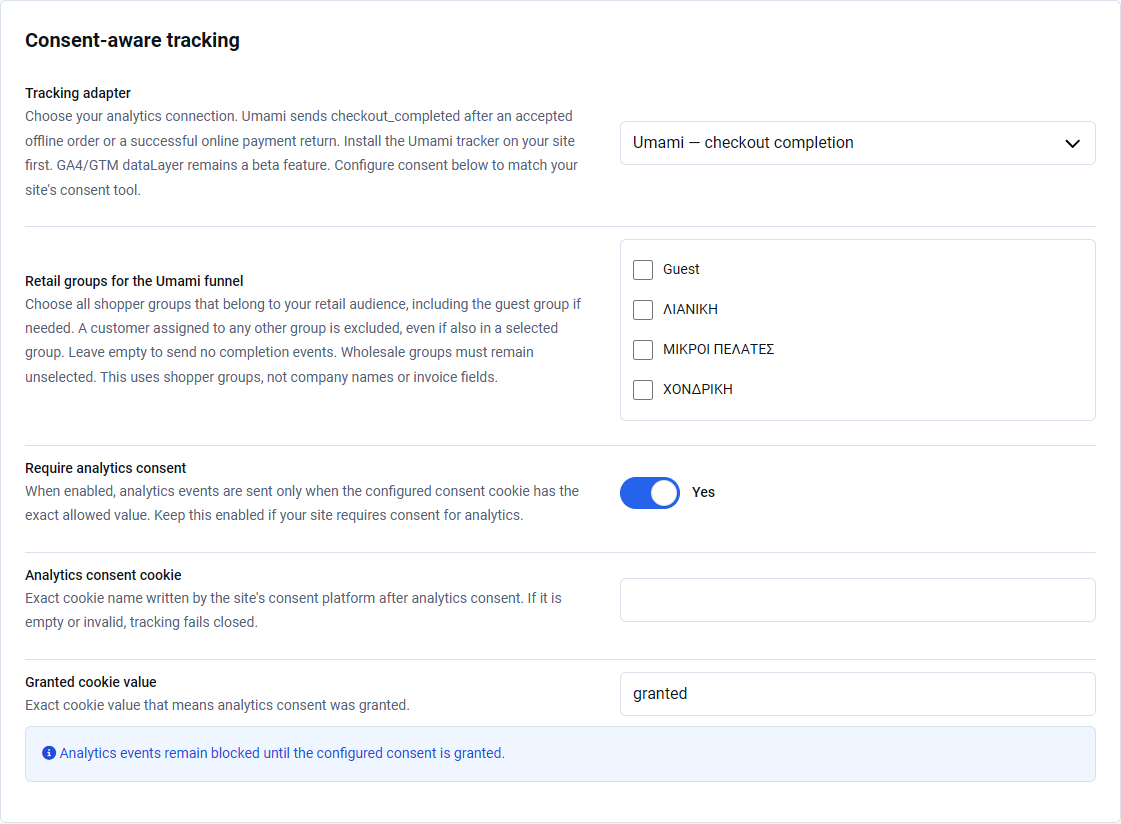
Which shopper groups count?
An empty group selection sends no completion events. A customer who also belongs to any unselected group is excluded, even if they belong to a selected retail group.
For example, select your Guest and Retail groups and leave Wholesale unselected. A retail-only customer can qualify. A customer assigned to both Retail and Wholesale does not qualify. Use the equivalent groups in your own store.
Cookie names and accepted values differ between stores. Both must match exactly. A missing or mismatched consent grant prevents tracking. Do not turn off required consent to solve a missing-event problem.
When is an order counted?
- An accepted order using a supported offline payment method can qualify. This does not mean that you have received payment.
- An online order qualifies after a verified successful payment outcome. Failed, cancelled or unconfirmed online payments do not count as completed.
- Refreshing the confirmation page or returning again does not create a second completion event for the same order.
The checkout_completed event contains no customer details, order number, amounts, products or payment-return details. It is a completion signal, not a revenue or product report.
Missing consent, a blocked tracker or leaving the page can prevent recording. Analytics cannot guarantee that every order appears in Umami.
Build an Umami funnel
A funnel shows how visitors move through the steps before completion.
- Open the correct website in Umami and go to Funnel.
- Click Add funnel.
- Use Add to create the earlier steps. Choose Viewed page for your store’s actual cart and checkout URLs. If you already track an add-to-cart event, you can add it as a Triggered event step.
- Add a final step of type Triggered event.
- Enter the exact event name
checkout_completed. - Set a suitable Window for the time allowed between steps, then click Save.
- Run the insight after eligible events have been recorded.
Steps must occur in order; visitors may visit other pages or events between them. The Umami connection does not create earlier funnel events. You do not need a new /success.html URL, and payment URLs stay unchanged.
See the official Umami Funnel guide for the current report options.
Check the result
- On a test store, place a new test order using a supported offline method or your payment provider’s test mode. Do not make a real charge just to check analytics.
- Use a shopper in the selected retail groups and grant analytics consent through the store’s cookie banner.
- Complete the order and keep its confirmation or payment-return page open long enough for the tracker to load.
- Open the same website in Umami and check for
checkout_completed. Then check the funnel for the chosen time range. - Refresh the confirmation page. It should not add another completion event for that order.
If no event appears, check:
- Is the correct Umami tracker loaded on the completion page?
- Is Umami — checkout completion selected, and were the settings saved?
- Are all of the customer’s shopper groups selected? Is the guest group included when needed?
- Has the required consent been granted, with the exact cookie name and value?
- Does the order meet the completion conditions described above?
- Are you viewing the correct Umami website and time range?
GA4/GTM dataLayer (Beta)
The GA4/GTM dataLayer adapter requires production end-to-end verification with the website’s real consent platform and analytics configuration.
- Select Consent-aware GA4/GTM dataLayer (Beta) as the Tracking adapter.
- Keep Require analytics consent enabled when required.
- Enter your consent platform’s exact Analytics consent cookie and Granted cookie value.
- Save and test both denied and granted consent states.
When consent is required, an empty, invalid or mismatched cookie mapping keeps tracking disabled. Events use a minimized allowlist and must not contain customer names, email addresses, postal addresses or payment secrets.