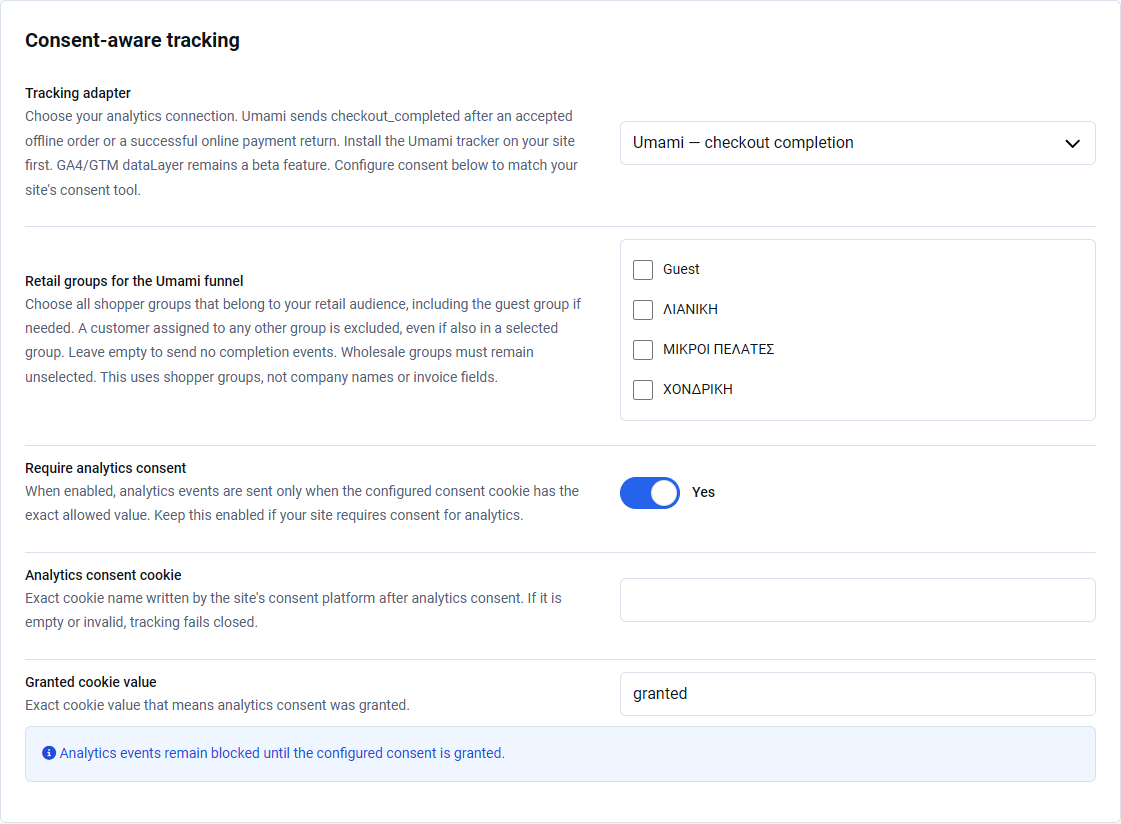
Choose the checkout layout
Open Components – Premium Checkout Suite – Settings – General and use Layout.
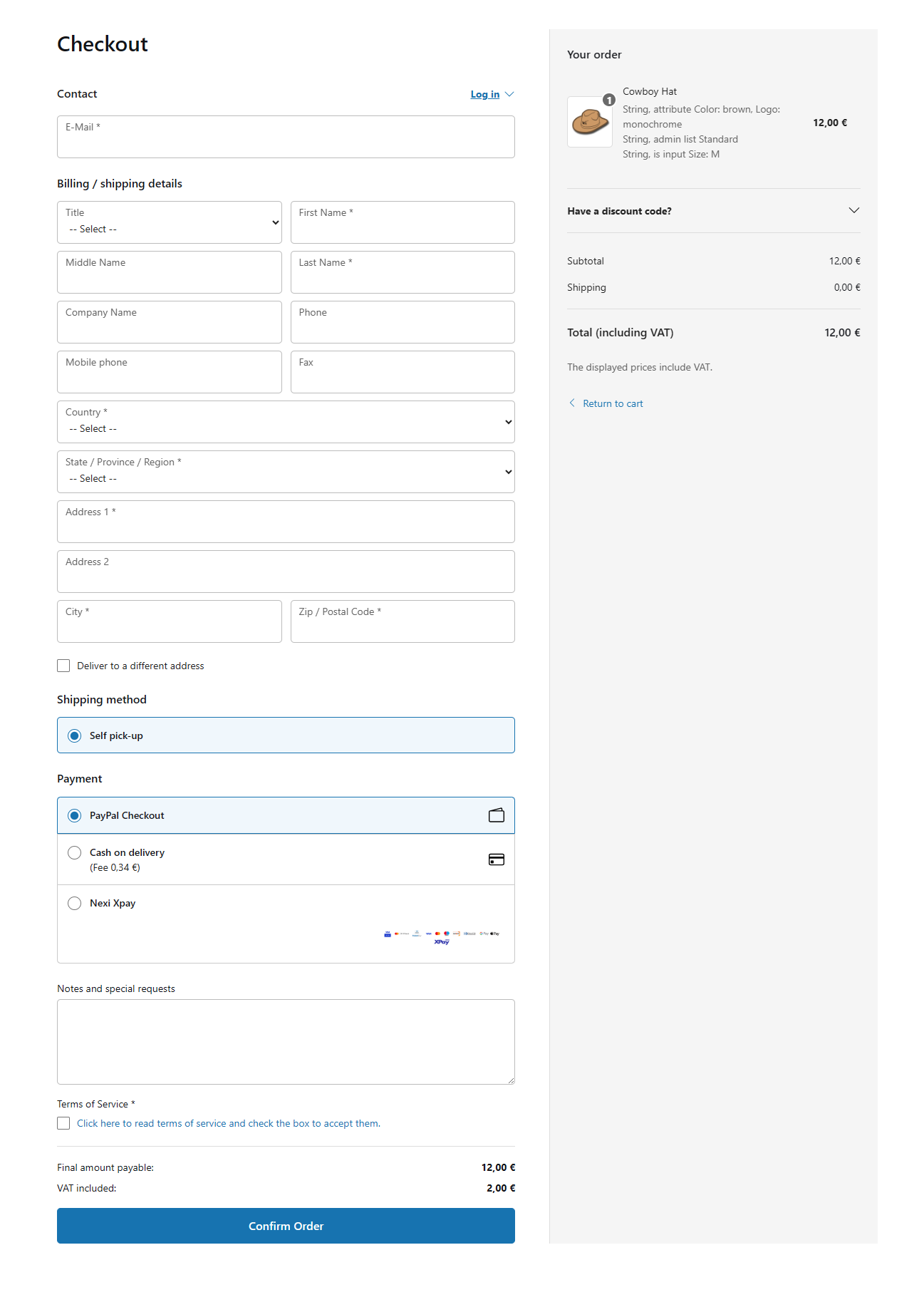
One Page
Shows customer details, delivery, payment, order review and confirmation controls in one continuous page. This is the default.
Multistep
Guides the shopper through focused stages and shows a final review before Confirm Order.
Choose One Page for familiar, compact checkout flows. Choose Multistep when a store has many fields or benefits from a guided sequence.
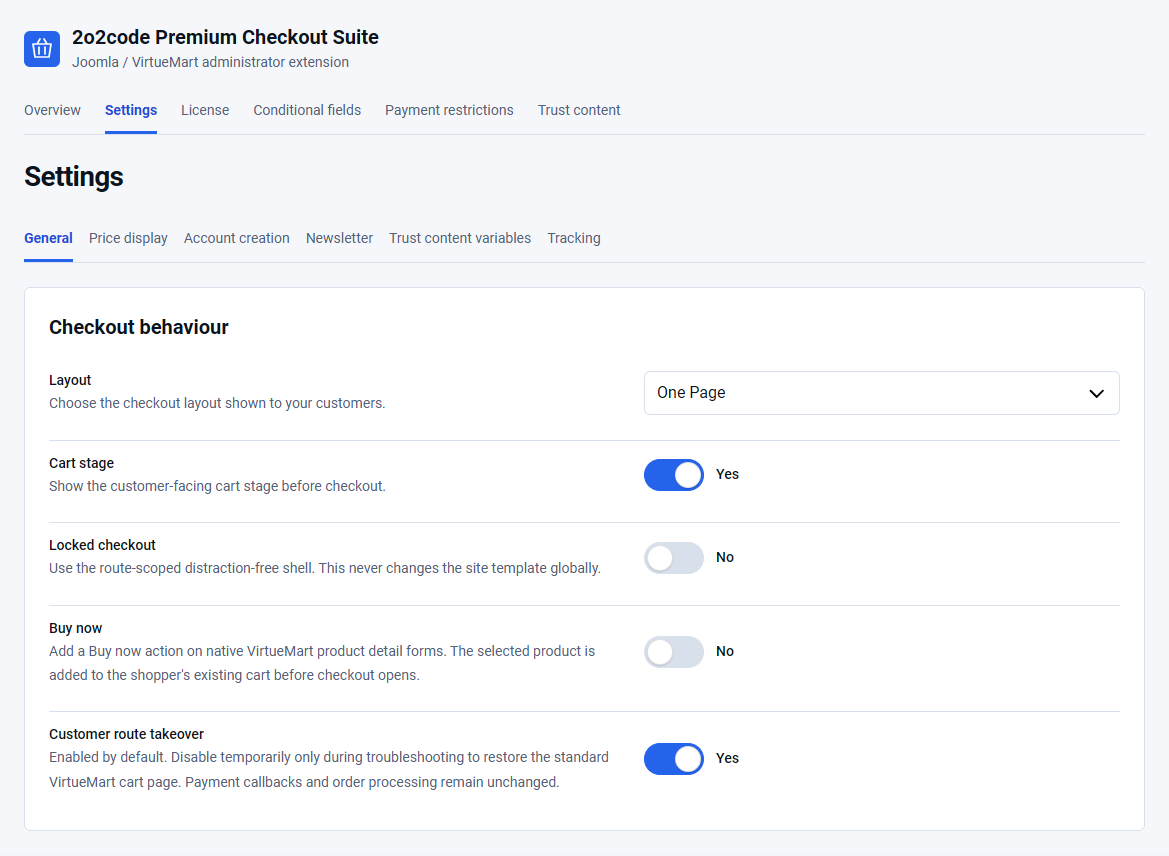
Configure the Cart stage
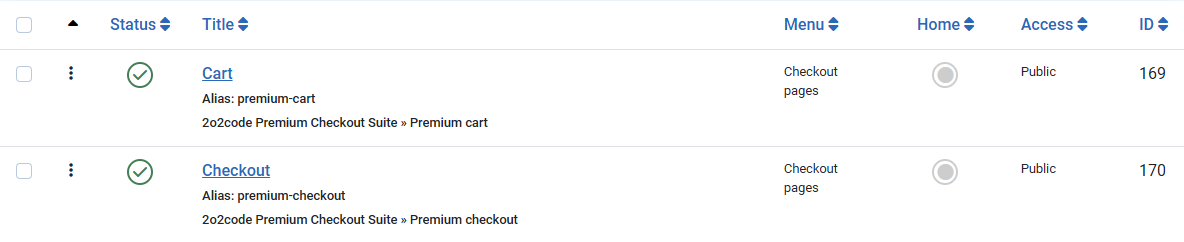
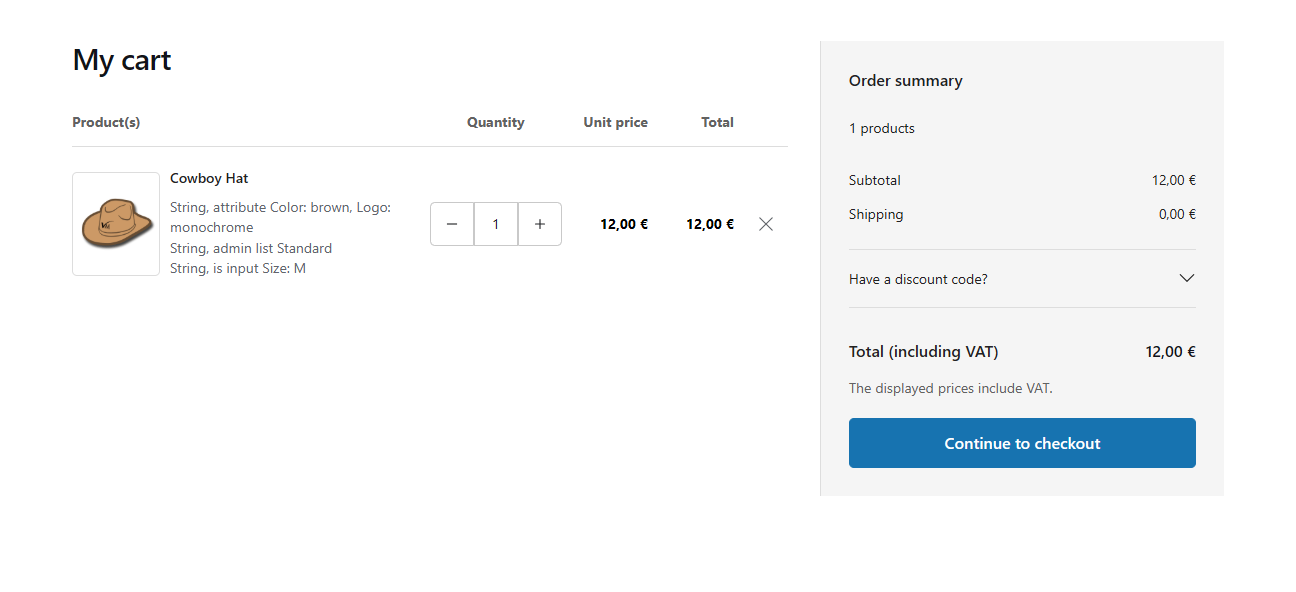
Cart stage is enabled by default. It shows a customer-facing cart before checkout where shoppers can review multiple products, change quantities and remove items.
- Enable Cart stage.
- Save the settings.
- Add at least two products from the storefront.
- Open the cart and change a quantity.
- Remove one item and confirm that VirtueMart recalculates the native totals.
Quantity changes and product removal also refresh the mini cart. Removing the last item displays the complete, correctly styled empty-cart state immediately, without a page refresh.
Use the One Page layout
- Select One Page under Layout.
- Keep Customer route takeover enabled.
- Save and open the storefront checkout.
- Complete billing details, optional delivery details, shipment and payment choices.
- Accept the native terms when required and submit the order once.
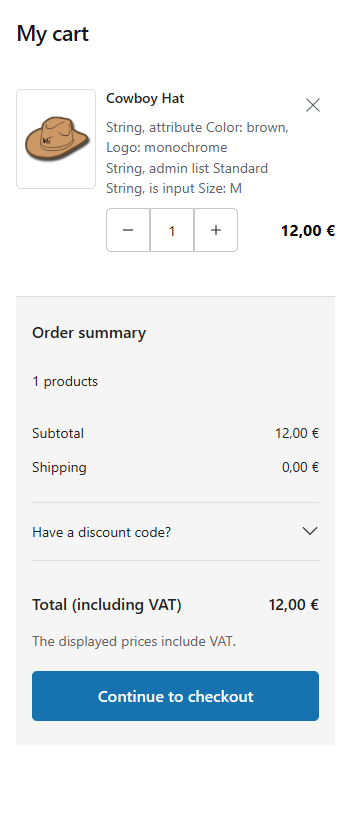
On narrow screens the layout stacks vertically. Native payment and shipment provider markup remains in place so provider controls continue to work.

Use the Multistep layout
- Select Multistep under Layout.
- Save and reopen the checkout.
- Move through the customer, delivery and payment stages.
- Review products, addresses, shipment, payment and totals.
- Select Confirm Order only after the review is correct.
Validation keeps the shopper on the relevant stage when required information is missing. Completed information remains available when moving backward.
Understand the checkout behaviour settings
Customer route takeover
Enabled by default. It sends the customer-facing cart and checkout routes through Premium Checkout Suite while preserving payment returns and order processing. Disable it temporarily only for troubleshooting.
Buy now
Disabled by default. When enabled, it adds a Buy now action to native VirtueMart product forms. The selected product is added to the shopper’s existing cart before checkout opens. Existing cart items are not discarded.
Locked checkout
Disabled by default. It uses a route-scoped, distraction-free shell only for cart and checkout pages. It does not change the Joomla template globally.
Cart stage controls whether the shopper sees a separate cart page. Buy now is a product-page shortcut that adds the selected item and opens checkout. Neither setting changes VirtueMart’s stored cart.
Success page and print view
After native order creation, the success page can show the order number and status, billing and delivery details, shipment, payment instructions, products, quantities, discounts, shipping, tax and final total.
The print action opens a read-only confirmation. Printing cannot create another order, repeat a payment action, resend email, create an account or repeat an analytics purchase event.
A pending order remains pending until VirtueMart or the payment provider authoritatively confirms another state. The page does not treat a visual browser return as proof of payment.
Test every enabled flow
- Test with one product and multiple products.
- Change quantities and remove an item.
- Test an empty cart.
- Test as a guest and as a signed-in customer.
- Test at desktop width and on a phone.
- Confirm that the final totals equal the native VirtueMart totals.
- Submit one order and verify that only one VirtueMart order exists.
Temporarily disable Customer route takeover. If the same price, method or validation issue exists in the native VirtueMart cart, correct the VirtueMart or provider configuration first.