Before installing
Confirm that the website runs Joomla 5.4.x, VirtueMart 4.6.8 or later in the VirtueMart 4 series, and PHP 8.2 or 8.3. Take a current website and database backup.
- Complete any pending Joomla and VirtueMart maintenance first.
- For a live store, use its final public HTTPS address. For a local website, use an eligible local address and a separate Local license.
- Keep the downloaded package ZIP unchanged. Do not extract its inner extensions.
A Production license uses the live store’s final public HTTPS address. An eligible local website can use a separate Local license without becoming public.
Install the package
- Open System – Install – Extensions.
- Select the Package File tab.
- Upload the customer package ZIP.
- Wait for Joomla to report a successful package installation.
- Do not refresh or close the page while Joomla is installing the component and system plugin.
The package installs the Premium Checkout Suite component and the required Premium Checkout Suite System Plugin.
Verify the installed extensions
- Open System – Manage – Extensions.
- Search for
twootwocheckout. - Confirm that the package, component and system plugin show the same installed version.
- Confirm that the system plugin is enabled.
- Open Components – Premium Checkout Suite and confirm that the dashboard loads without an error.
Do not install the component and plugin ZIP files separately. The customer package installs and updates the complete extension set together.
Activate the license on a live website
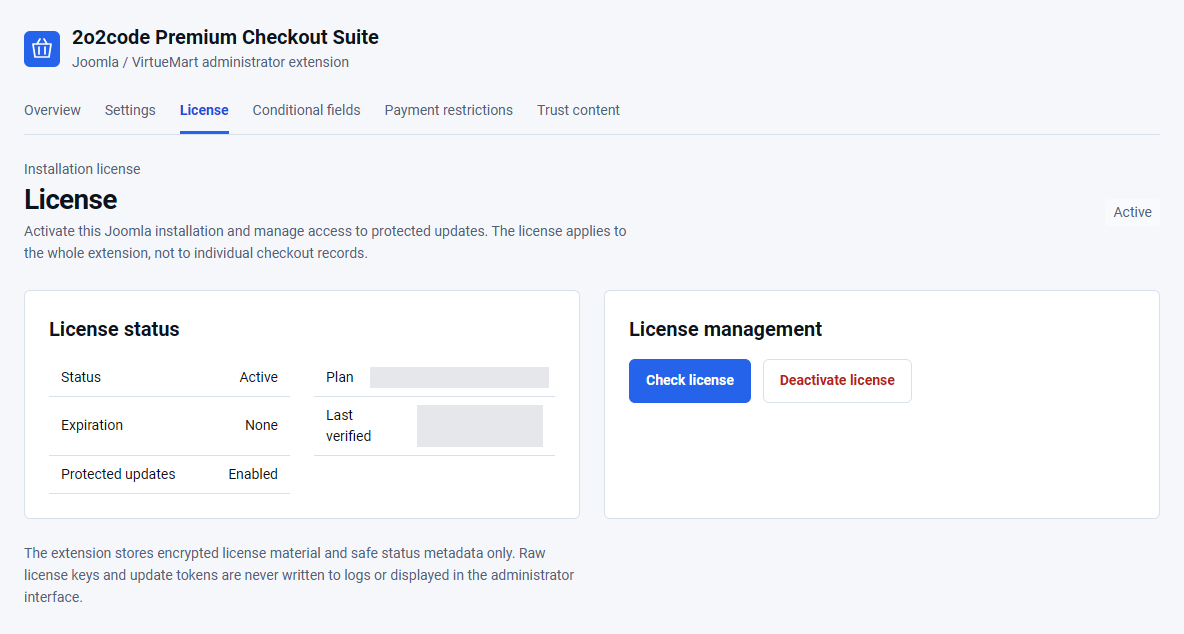
- Open Components – Premium Checkout Suite – License.
- Use the live store’s final public HTTPS address. Enter the Freemius license key into License key.
- Select Activate license.
- Confirm that Status is Active and Protected updates are Enabled.
The key is encrypted before storage and is not displayed again. Never include the key or Joomla Download Key in screenshots, logs or support tickets.
Never include your license key or Joomla Download Key in screenshots or support messages.
Activate the extension on a local website
What is a local license?
A Local license lets a valid license holder use and test the extension on an eligible local Joomla website. You do not need to make that website public. It is separate from the Production license used by your live store.
Supported local addresses
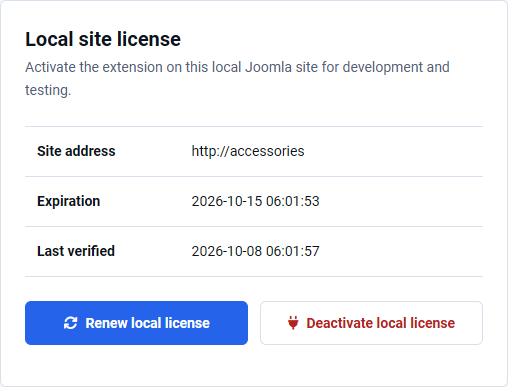
The Local license section appears automatically on eligible local addresses. Its heading on the License page is Local site license.
localhostor an address ending in.localhost.- A loopback or private-network IP address.
- A simple local hostname, such as
accessories-checkout. - A domain ending in
.testor.local.
Use a genuine local address. Do not create a fake public hostname or expose the local website to the internet to activate it.
How to activate a local license
- Confirm that System – 2o2code Premium Checkout Suite is enabled.
- Open Components → Premium Checkout Suite → License.
- Find Local site license. This section appears only on eligible local addresses.
- Enter the Freemius license key you received with your purchase.
- Select Activate on this local site.
- Confirm that the Local license is Active and that Site address shows the correct local website.
Do not include it in screenshots, examples or support messages.
Renewal and deactivation
A Local license is temporary and lasts for up to seven days. Open the same License page and select Renew local license to renew it. Select Deactivate local license when you no longer use that local installation.
What the local license includes
It enables the licensed features needed to test the cart, checkout, success page and print page on your local website.
What it does not include
- Protected Joomla updates for the local installation.
- A separate support entitlement for that local installation.
- Permission to take real live payments.
Use test payment settings only. To update a local installation, manually install the new authorized package you are entitled to download.
Moving from local to live
A Local license does not turn into a Production license automatically.
- Install the approved production package on the live website.
- Open its License page from the store’s final public HTTPS address.
- Use the normal Activate license option.
- Confirm that the license is Active and Protected updates are enabled.
Do not copy Local license tables or license data from the local installation to the live website.
Local license troubleshooting
The Local license section is not displayed
Check that you use the current supported version of the extension and an eligible local address. Public website addresses use the normal Production license activation.
The local license cannot be activated or renewed
Check that your Freemius license key is active and that the local server can make outgoing HTTPS connections. Do not edit the database or copy license data from another installation. Contact support if the problem continues.
The local license is active but the default VirtueMart checkout is displayed
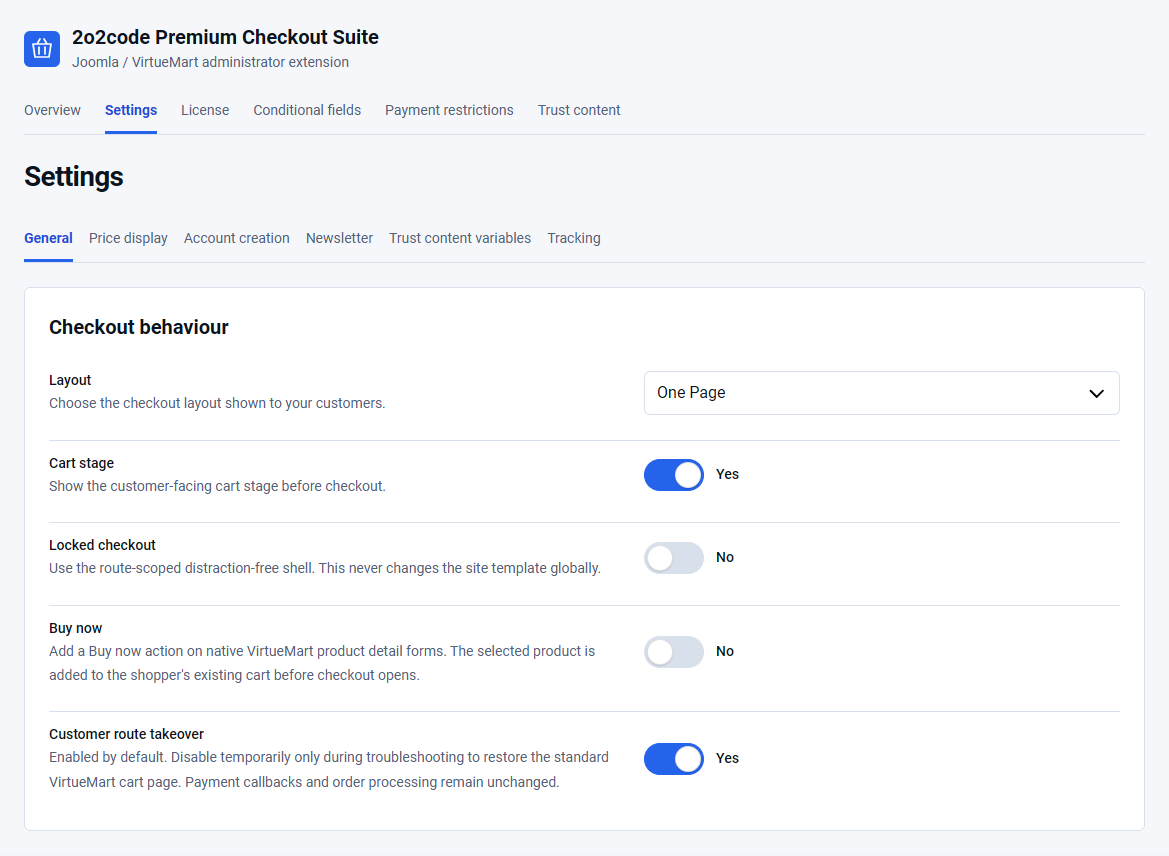
License activation does not choose a checkout layout. Confirm that System – 2o2code Premium Checkout Suite is enabled. Review Checkout behaviour in the extension settings, then check the Cart and Checkout menu items using the next section of this guide.
Protected updates are unavailable locally
This is expected. A Local license does not enable protected-update access. Update the local installation by manually installing the authorized package.
Create the Cart and Checkout pages
Joomla uses menu items to decide which template settings and modules appear on each page. Create separate menu items for the Cart and Checkout so these pages do not use the Home page layout or show Home-only modules.
The menu items must remain published, but the menu itself does not need to appear on the website.
Step 1 — Create a hidden menu
- Open Menus – Manage.
- Select New.
- Enter Checkout pages as the menu title.
- Enter
checkout-pagesin Unique Name (the menu type). - Save the menu.
- Do not create or publish a menu module for this menu.
A “hidden menu” is a normal Joomla menu that is not displayed by a menu module. Its menu items remain published and can still provide the correct pages and URLs.
Step 2 — Create the Cart page
- Open the new Checkout pages menu.
- Select New.
- Enter Cart as the menu title.
- Select Menu Item Type.
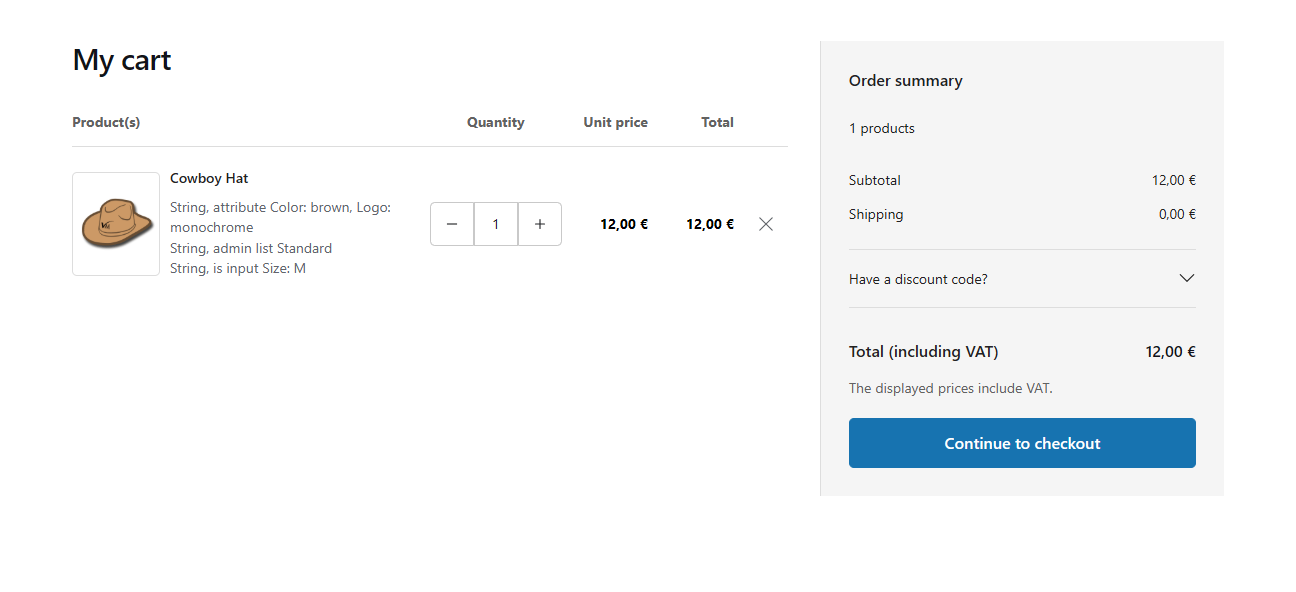
- Choose Premium Checkout Suite – Premium cart.
- Set Status to Published.
- Set Access to Public.
- For a website with one language, keep Language set to All.
- Save and close the menu item.

Step 3 — Create the Checkout page
- Select New again.
- Enter Checkout as the menu title.
- Select Menu Item Type.
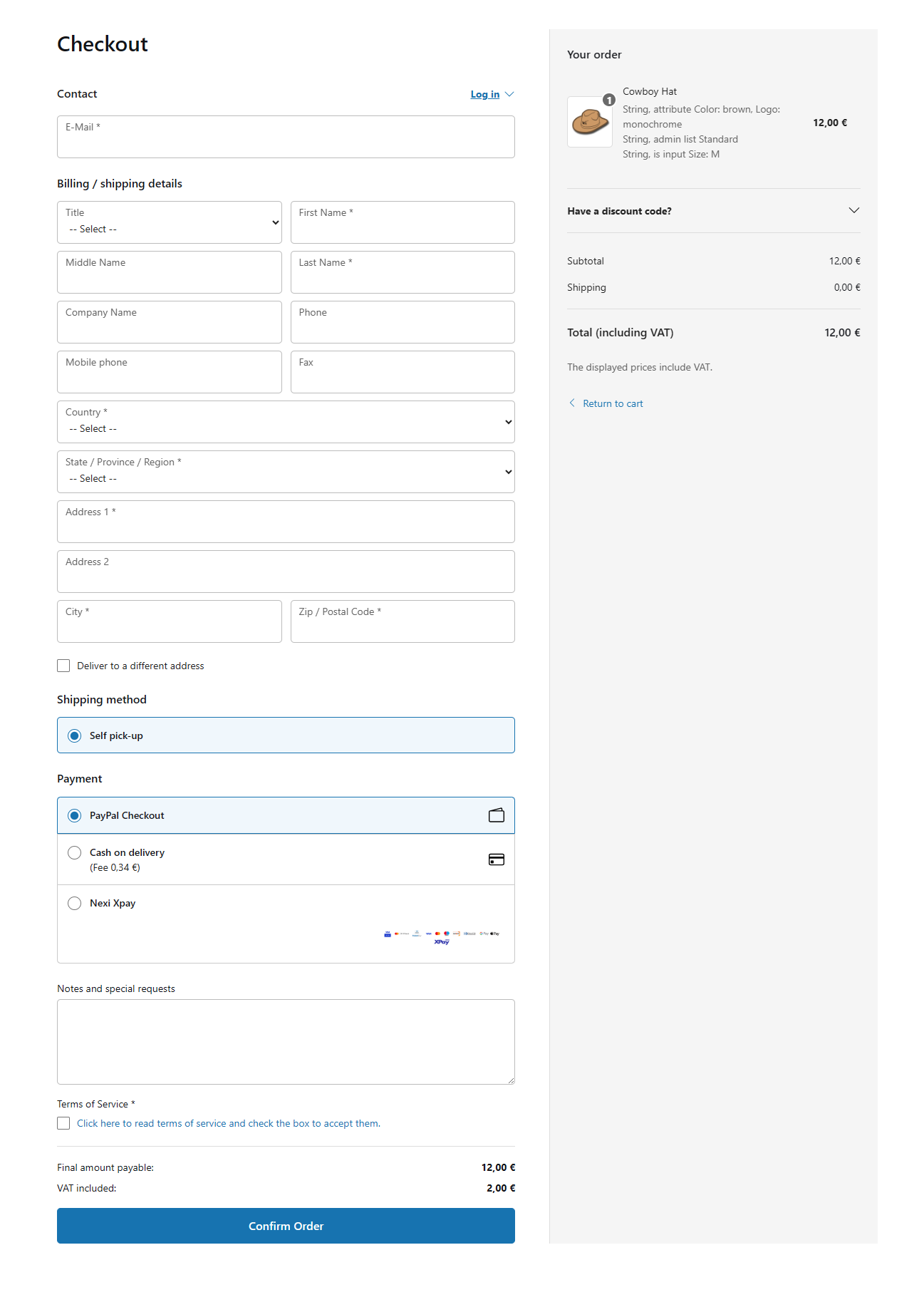
- Choose Premium Checkout Suite – Premium checkout.
- Set Status to Published.
- Set Access to Public.
- Use the same language setting as the Cart page.
- Save and close the menu item.
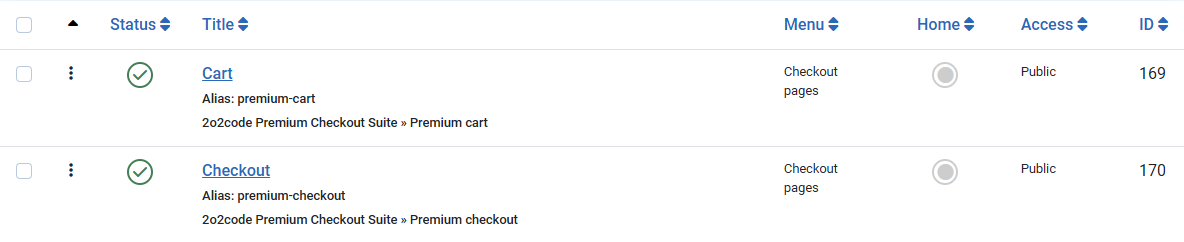
If the website uses more than one language, create a separate Cart and Checkout menu item for each active language. Select the correct language on every menu item.
Check the result
- Open the public website.
- Add a product to the cart.
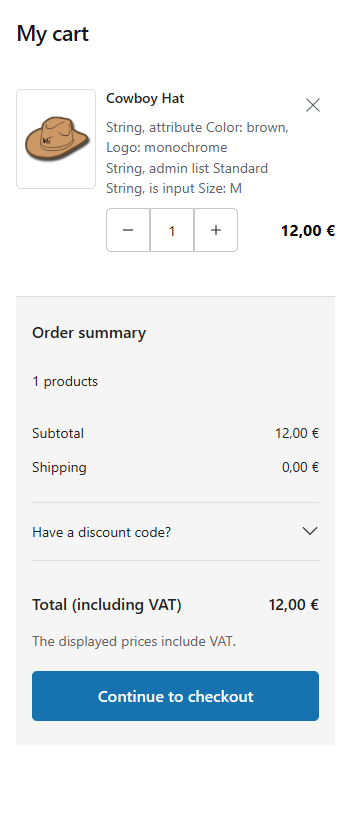
- Open the Cart and continue to Checkout.
- Confirm that modules intended only for the Home page are not displayed.
- Global elements, such as the website header and footer, may still appear when they are assigned to all pages.
If Home page banners, sliders or other Home-only modules appear around the checkout:
- Confirm that both menu items are published.
- Confirm that their language matches the current website language.
- Confirm that their access level allows the customer to open them.
- Confirm that Customer route takeover is enabled in Premium Checkout Suite settings.
Complete the first-time setup
- Open Premium Checkout Suite – Settings.
- Keep Layout on its default, One Page, for the first test.
- Keep Cart stage enabled.
- Leave Locked checkout and Buy now disabled.
- Keep Customer route takeover enabled.
- Save the settings.
- Open the storefront in a private browser window and add a simple product to the cart.
- Complete one test order with a safe offline payment method.
Understand license behaviour
- Initial activation: required before new extension-owned checkout work starts.
- Expired subscription: the already activated checkout continues to operate, while updates, support and new activations stop.
- Confirmed disconnect or deactivation: new extension-owned checkout operations stop after authoritative validation.
- Temporary service or network problem: the last confirmed license remains in use.
- Existing orders: callbacks, completion, recovery and printing remain available and do not depend on a live license request.
Use Check license after a temporary connection issue. Contact support before moving an activation to a different canonical site address.