
In this guide
Start with the information the order needs
Before creating a condition, decide what the field is for. A company-name field may be relevant to a business purchase; alternative delivery information may apply only when the shopper needs it. A condition should express a real store requirement, not simply make the form look shorter.
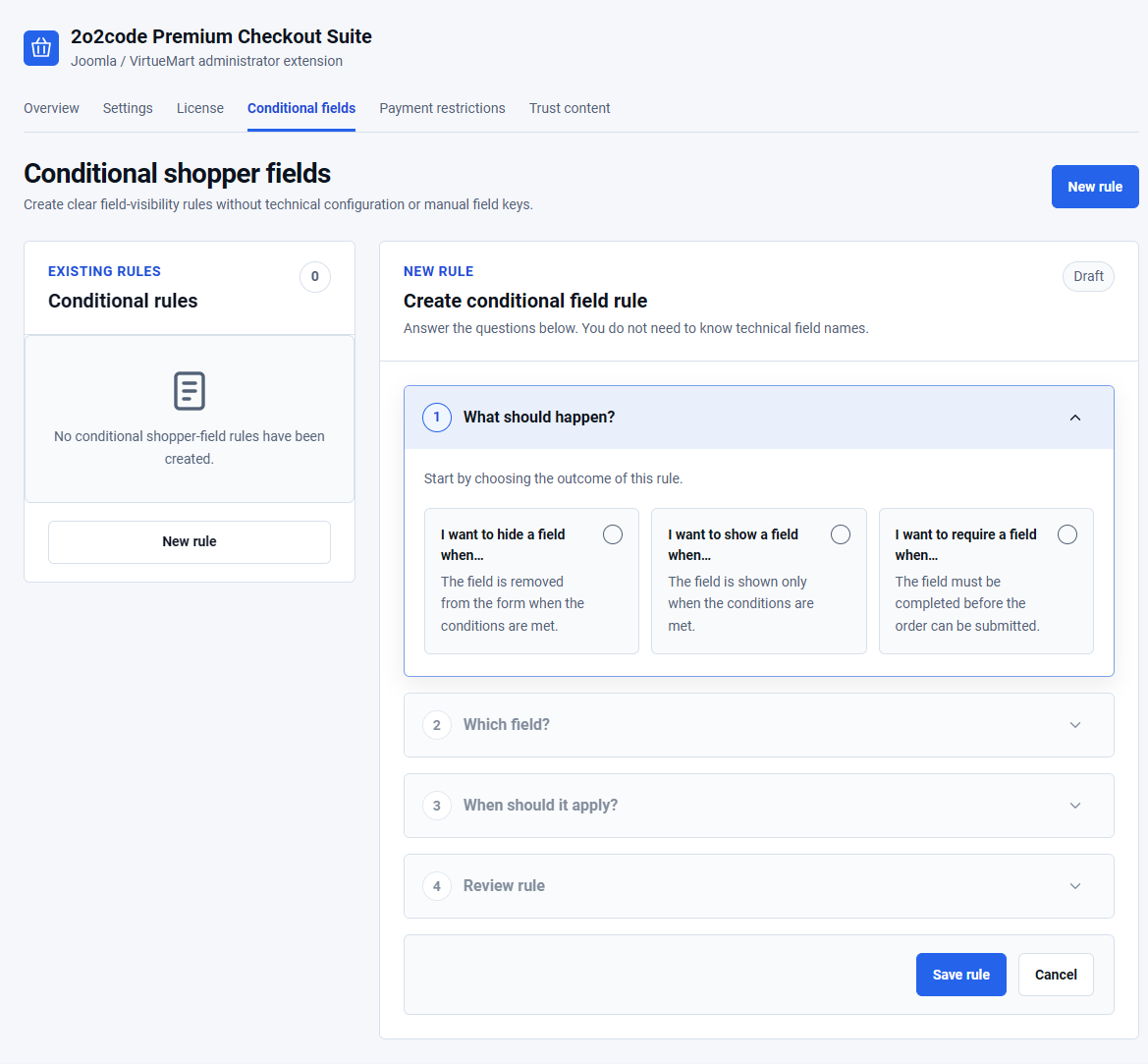
Premium Checkout Suite’s guided builder supports Show when matched, Hide when matched and Require when matched. Rules act on supported VirtueMart shopper fields in billing, alternative delivery, or both contexts.
VirtueMart remains authoritative for shopper groups, prices, tax, payment and shipment eligibility. A field-presentation rule does not grant business-customer privileges or change those decisions.
Create a rule with the guided builder
- Open Conditional fields.Go to Components → Premium Checkout Suite → Conditional fields and select New rule.
- Choose the affected field or fields.Select the existing shopper fields relevant to this outcome.
- Choose the action.Select Show when matched, Hide when matched or Require when matched.
- Choose the context.Use Billing / primary, Alternative delivery or Both.
- Choose how conditions combine.Select Match all or Match any, then add the necessary conditions.
- Review before enabling.Read the rule summary, save it and check its meaning in an isolated setup before enabling it for customers.
Condition sources include shopper fields, payment method, shipment method, cart product, cart category and shopper group. The shopper fields documentation describes the supported comparisons and related settings.
Example: require a company detail for an existing B2B group
Suppose the store already assigns approved business customers to a native VirtueMart B2B shopper group. The checkout needs a particular company detail for those customers.
- Confirm the company shopper field exists and is configured for the intended checkout context.
- Choose Require when matched for that field.
- Use a shopper group condition matching the store’s existing B2B group.
- Inspect an approved B2B customer and an ordinary retail customer, including the required-field response.
This example uses a group the store has already assigned. A shopper selecting a business-related field must not automatically gain access to a restricted B2B group, different tax treatment or a protected payment method.
Example: show information for a relevant order
A store may need an extra shopper-field detail only for a particular product category or delivery choice. A supported cart-category or shipment-method condition can express that relationship.
Choose Show when matched when the field should be visible for the relevant condition. Use a separate reviewed requirement only if the information is necessary for that order. The available field and condition must come from the store’s supported configuration.
Check the matching and non-matching cases. If the cart or delivery choice changes, confirm the field’s current visibility and requirement match the current order rather than an earlier selection.
Keep visibility and validation consistent
Hiding a field with a theme rule is not equivalent to configuring a supported conditional rule. Browser presentation can change while the server still requires a value, leaving the customer unable to continue.
Use the product’s reviewed conditional result and retain server-side validation. Avoid overlapping rules that give the same field contradictory instructions. Start with one clear outcome and expand only when the store needs it.
Evaluate affected billing and alternative-delivery contexts separately. A rule that makes sense for the purchaser’s company information may not belong on an alternative delivery address.
Use the same field policy in either checkout layout
The conditional-field capability supports the store’s configured checkout. Choose One Page checkout for a continuous view or Multistep checkout for a guided sequence, then review the affected field behavior in the enabled layout.
In a private test environment, check matching and non-matching customers or orders, empty required values, corrected input and a change to the condition. Reuse accepted native pricing and payment evidence when those contracts remain unchanged.
Compare the two checkout layouts, then explore Premium Checkout Suite and its supported environment.