Overview
Keep CarRentory core 1.1.0 or later installed and active.
CarRentory PayPal is a separate paid add-on for CarRentory. It lets customers pay the full booking amount on PayPal and return to your website when they finish.
CarRentory Free is required. CarRentory Pro is optional. You do not need WooCommerce. A Pro license does not activate the PayPal add-on; PayPal has its own license.
The add-on uses the booking total and currency already calculated by CarRentory. It does not add a second rental price calculation. If you use Pro pricing features, their amounts remain part of the same booking total.
Before you begin
- Install CarRentory 1.1.0 or later and keep it active.
- Use WordPress 5.8 or later and PHP 7.4 or later. The plugin declares testing up to WordPress 7.1.
- Use a public website with HTTPS and a valid security certificate.
- Have a CarRentory PayPal software license ready.
- Have access to the PayPal Business account that will receive payments.
- Make a backup of your website files and database.
This version supports activation on an individual WordPress site. Network-wide activation in WordPress Multisite is not supported.
Download and install
- Sign in to the Freemius Customer Portal using the email address associated with your purchase.
- Open Downloads.
- Download CarRentory PayPal.
- In WordPress, open Plugins → Add New Plugin → Upload Plugin.
- Choose the downloaded ZIP without extracting it.
- Select Install Now.
- Select Activate Plugin.
If WordPress offers to replace an existing CarRentory PayPal installation, check that it is the intended plugin before confirming. Keep a backup. Do not install a second copy under a different folder or delete the plugin as an update method.
Activate your software license
- Follow the license activation screen shown by the add-on.
- Enter your CarRentory PayPal license key in that WordPress form.
- Submit the activation form.
- Open CarRentory → Settings → Payments.
- Open Settings for PayPal.
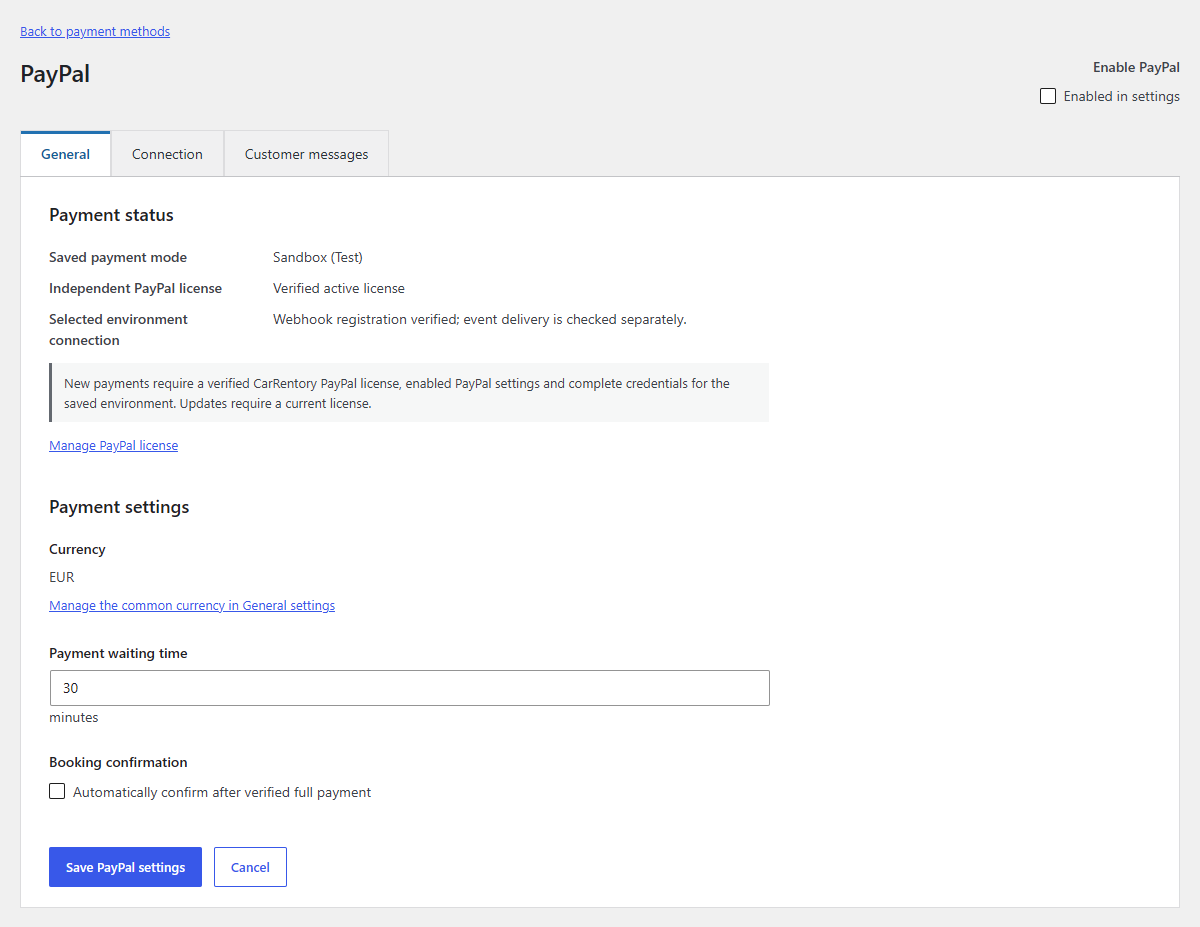
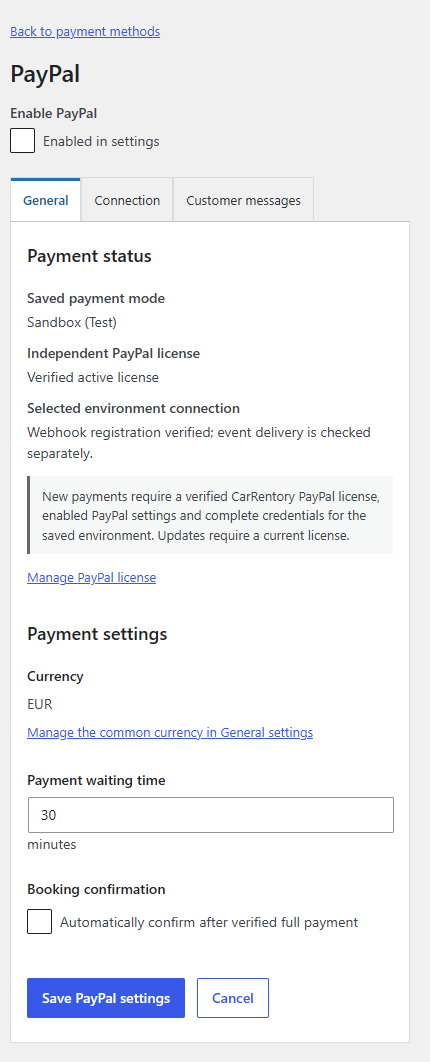
- In General, check the Independent PayPal license status.
You can return to the license screen through Manage PayPal license in General. Activation alone does not enable payments.
Keep your license key private. Enter it only in the official activation form, not in an email, screenshot or support message.
Your next step
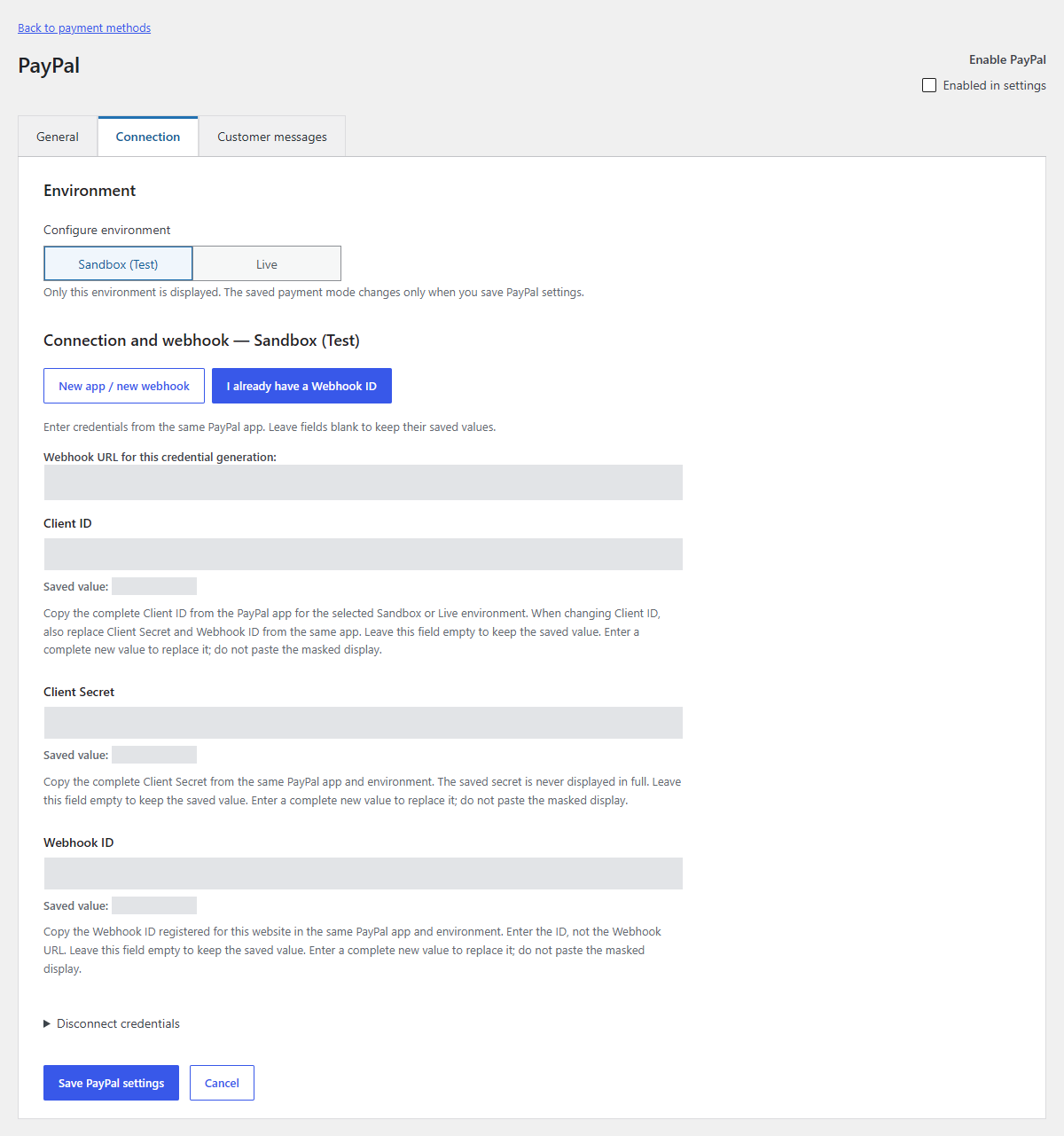
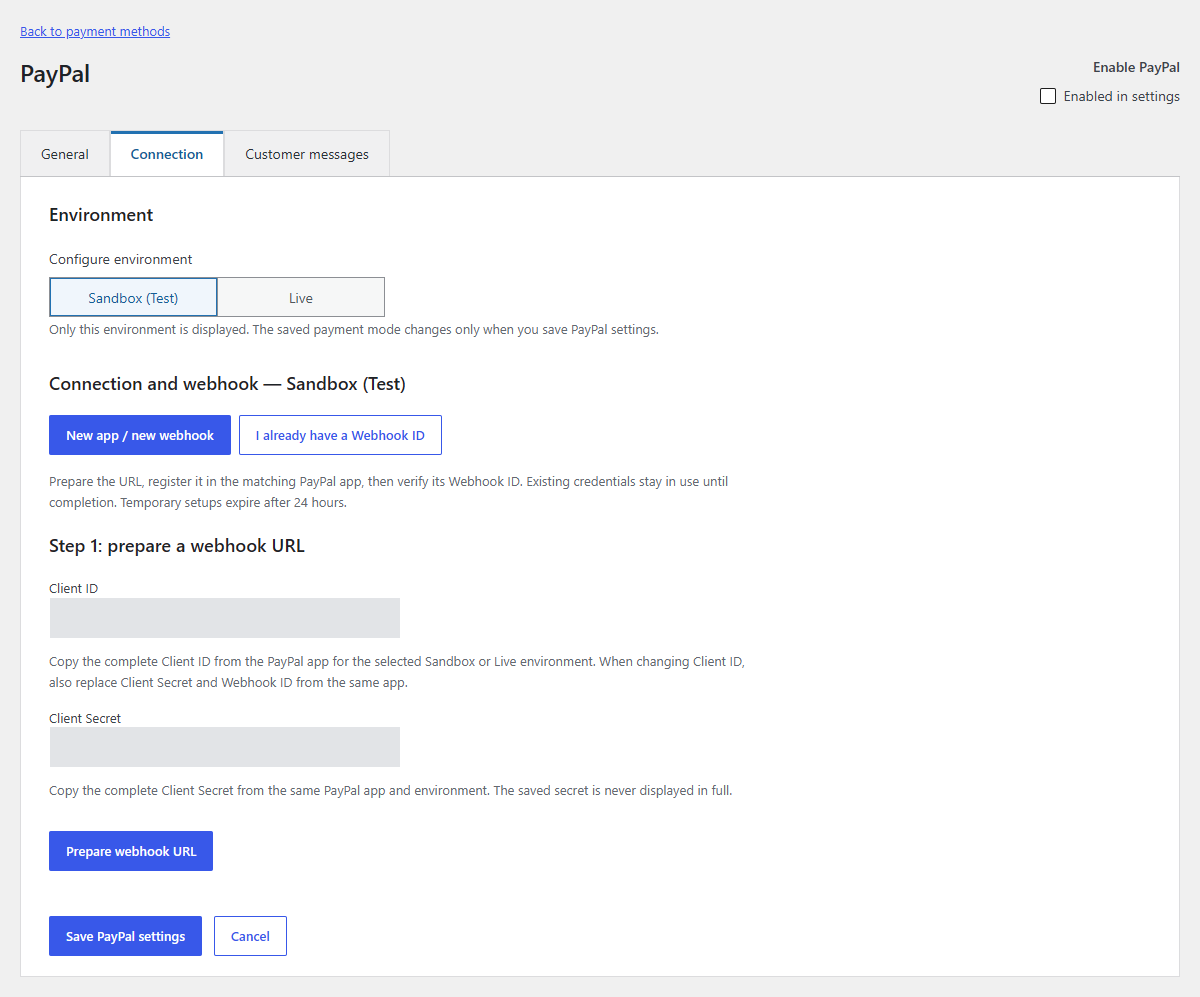
Leave Enable PayPal off and connect your Sandbox app in the next chapter.