
Why protect Contact Form 7 without CAPTCHA?
CAPTCHA can be useful in some situations, but it can also add another task between a real visitor and a successful enquiry. Visual puzzles, checkbox challenges and external verification widgets may create friction, especially for visitors using assistive technology or working on a small screen.
Cloud anti-spam services introduce a different trade-off: the website depends on another service for a decision, and form-related data may need to leave the WordPress site. That may be acceptable for some projects, but it is not the only approach.
2o2code Spamless Forms evaluates supported submissions locally inside WordPress. It does not add CAPTCHA challenges and the Free version does not contact an external spam-scoring API. Contact Form 7 support is included in Free 1.0.0, which is a complete free plugin rather than a time-limited trial.
No anti-spam setup can promise that every unwanted message will disappear. The goal is to reduce automated abuse while testing carefully for legitimate visitors.
What you need before installation
- A WordPress site running WordPress 6.4 or newer and PHP 7.4 or newer.
- Contact Form 7 installed, active and connected to the form you want to test.
- Access to install plugins and open Settings > 2o2code Spamless Forms.
- A normal test message and a separate synthetic spam-like message that contain no real personal data.
Use a staging site first when a contact form is business-critical. If you need to test on production, start with Monitor mode so submissions are observed without being blocked.
A five-minute setup for Contact Form 7
- Install the Free plugin.In WordPress, open Plugins > Add New, search for “2o2code Spamless Forms,” then install and activate the official plugin.
- Open the protection settings.Go to Settings > 2o2code Spamless Forms and open Protection.
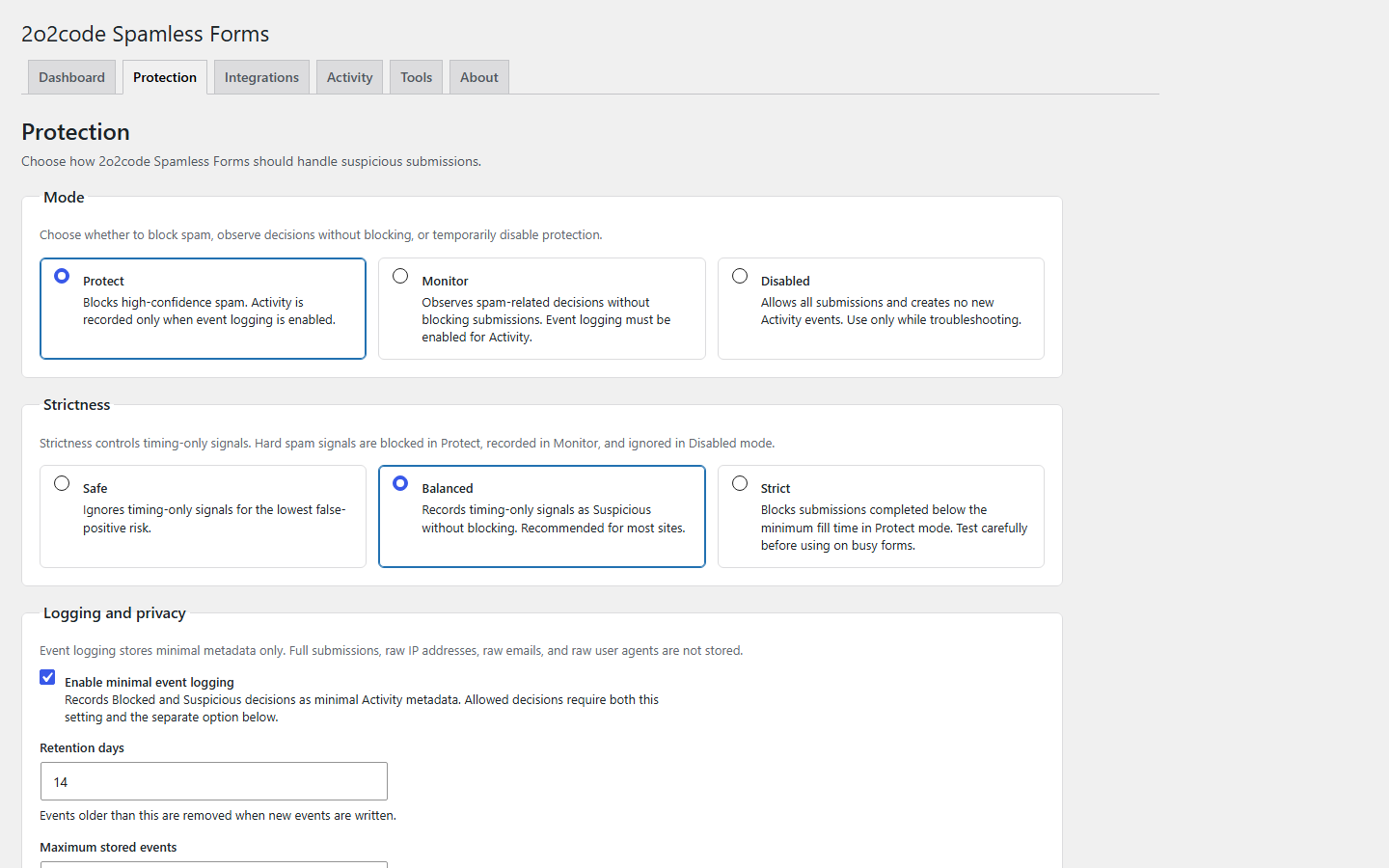
- Choose the starting mode.Use Protect for a normal production setup. For a business-critical first test, use Monitor briefly and switch to Protect after reviewing the results.
- Keep Balanced strictness.Balanced is the recommended default for most sites. Leave Advanced Settings at their defaults until Activity shows a specific reason to change them.
- Enable useful logging.Enable Event logging. Keep Log allowed submissions disabled unless you are troubleshooting. The documented starting values are 14 days of retention and a maximum of 100 Activity records.
Find and enable the Contact Form 7 integration
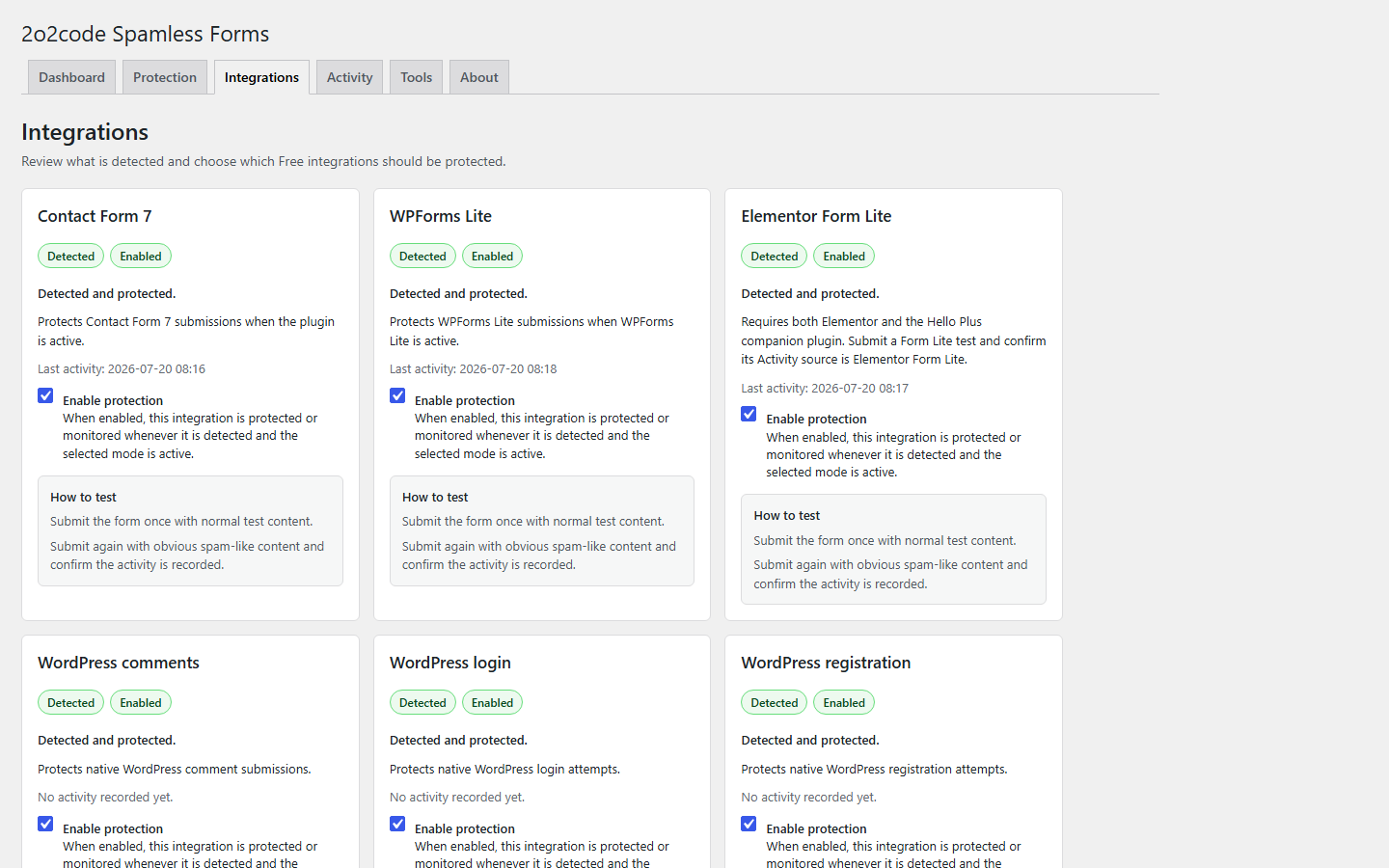
Open the Integrations screen. When Contact Form 7 is active, its integration should be detected. Enable its protection preference and confirm that its state matches the mode selected on the Protection screen.
In Protect mode, a high-confidence spam decision can stop the submission through Contact Form 7’s native validation and error flow. Monitor observes the same type of decision without blocking the visitor.
Understand Protect, Monitor and Disabled
Protect
High-confidence spam can be blocked. Decisions are recorded when event logging is enabled. This is the recommended production mode after testing.
Monitor
Submissions are not blocked. Spam-related decisions can appear in Activity when logging is enabled. Use it for an initial rollout or troubleshooting.
Disabled
All submissions are allowed, checks are bypassed and no new Activity events are created. Saved settings remain available for later use.
Choose Safe, Balanced or Strict
Strictness mainly changes how timing-only signals are handled. It does not turn Monitor into a blocking mode.
Safe
Timing-only signals are ignored. Hard spam signals still work in Protect. Safe can suit very short forms or audiences likely to submit quickly.
Balanced
Timing-only signals are recorded as Suspicious but do not block by themselves. This is the recommended default for most sites.
Strict
A submission completed below the configured minimum time is blocked in Protect. Use Strict only after Activity review shows a low false-positive risk.
Test a normal and a suspicious submission
First, submit a normal Contact Form 7 message with synthetic, non-personal test content. Confirm that Contact Form 7 shows its usual success response. A normal submission with no signal may not appear in Activity because allowed-submission logging is disabled by default.
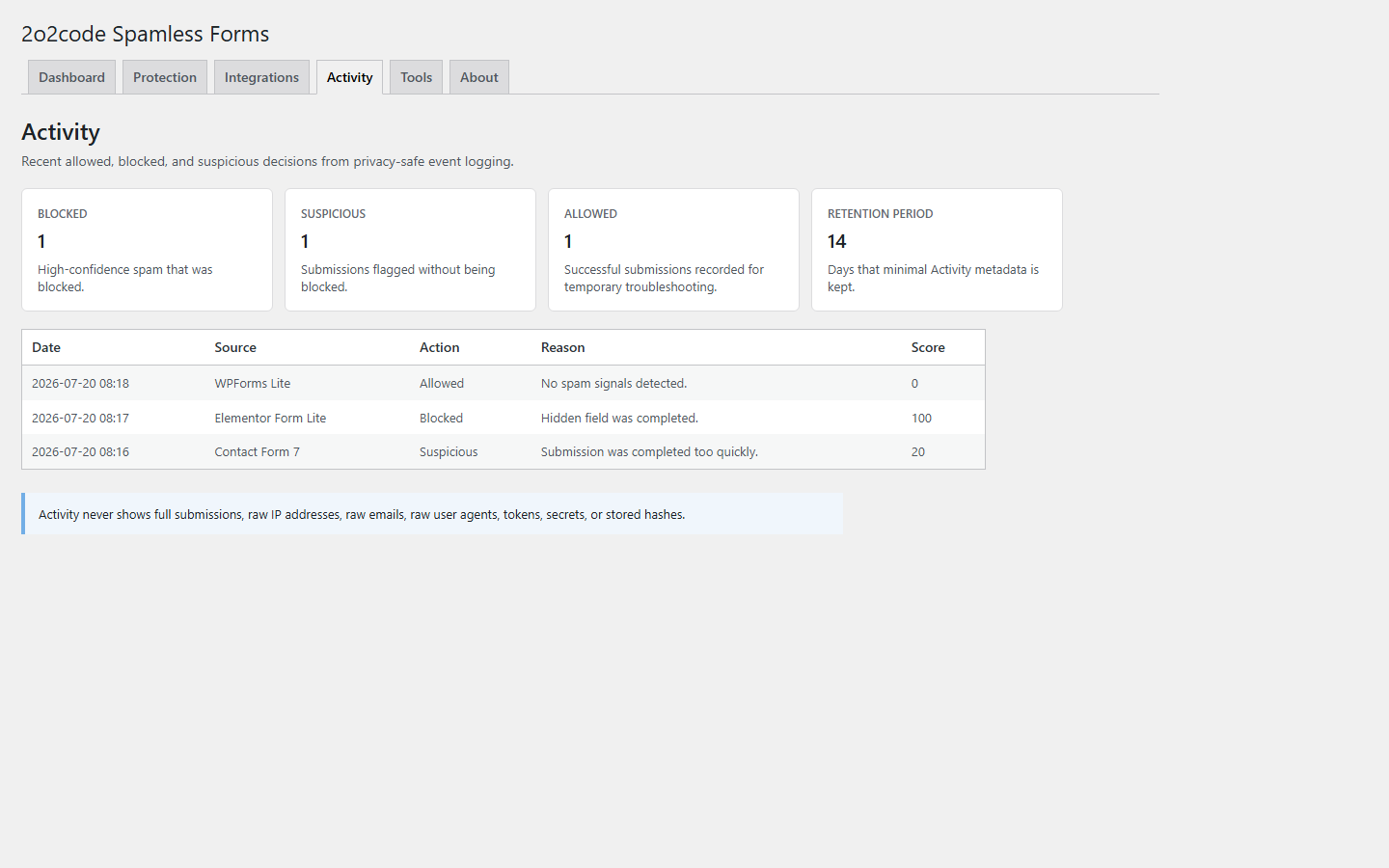
Next, send an obvious synthetic spam-like test without real names, email addresses or customer information. Depending on the active mode, strictness and combined signals, the result may be Allowed, Suspicious or Blocked. In Protect mode, a blocked test should use Contact Form 7’s generic native error flow rather than exposing the internal reason to the visitor.
Open Activity and read the source, status and human-readable reason. Change only one setting at a time, repeat both tests, and compare the result before making another adjustment.
What Activity shows and what it does not store
When event logging is enabled, Activity can show the timestamp, integration source, decision, score and a human-readable reason. Higher scores represent stronger combined signals; they are not probabilities.
- Allowed, Suspicious or Blocked status
- Integration source
- Timestamp, score and decision reason
- Minimal non-reversible identifiers where available
- Complete form submissions
- Raw IP addresses
- Raw email addresses
- Raw user agents
A missing JavaScript verification token by itself is marked Suspicious and allowed. Rate limiting and hard spam signals still apply when JavaScript is unavailable and can block a submission in Protect mode.
Frequently asked questions
Is the Free version a trial?
No. Free 1.0.0 is a complete plugin, available now from WordPress.org. Contact Form 7 support is included without a PRO license.
Do I need the PRO version for this setup?
No. PRO is under development and is not required for the Contact Form 7 protection described in this guide.
Does the plugin use CAPTCHA or a cloud scoring API?
No. It adds no CAPTCHA or external verification widget, and anti-spam evaluation runs locally without an external spam-scoring API.
Can it guarantee that every spam message will be blocked?
No responsible anti-spam setup can promise complete elimination. Start with the documented defaults, test real workflows carefully and use Activity reasons to make measured adjustments.
Free 1.0.0
Add local Contact Form 7 protection without CAPTCHA.
Download the complete Free plugin from WordPress.org, then keep the documentation nearby while you test your form.
Found something unclear during setup? Share your feedback with 2o2code. For occasional release news, join the product updates.