
Why WPForms Lite attracts automated submissions
A public enquiry form gives customers a direct route into your business, but the same endpoint is visible to scripts that post advertising, repeated URLs or meaningless text. Changing field labels rarely solves the underlying problem because automated requests can target the submission process rather than interact with the page like a person.
CAPTCHA places a visible checkpoint in that process. It may be appropriate for some websites, but it also asks every visitor to complete an extra step. An external anti-spam API removes the puzzle from view, yet introduces a remote scoring dependency and may require submission-related information to leave the WordPress installation.
2o2code Spamless Forms takes a different route for supported forms. Its Free 1.0.0 release includes WPForms Lite and evaluates anti-spam signals within WordPress. There is no CAPTCHA widget, account requirement or external spam-scoring API in this workflow.
Install the Free plugin, enable its WPForms Lite integration, observe a short test in Monitor and then move to Protect with Balanced strictness. The rest of this guide explains how to validate each step rather than relying on an assumed result.
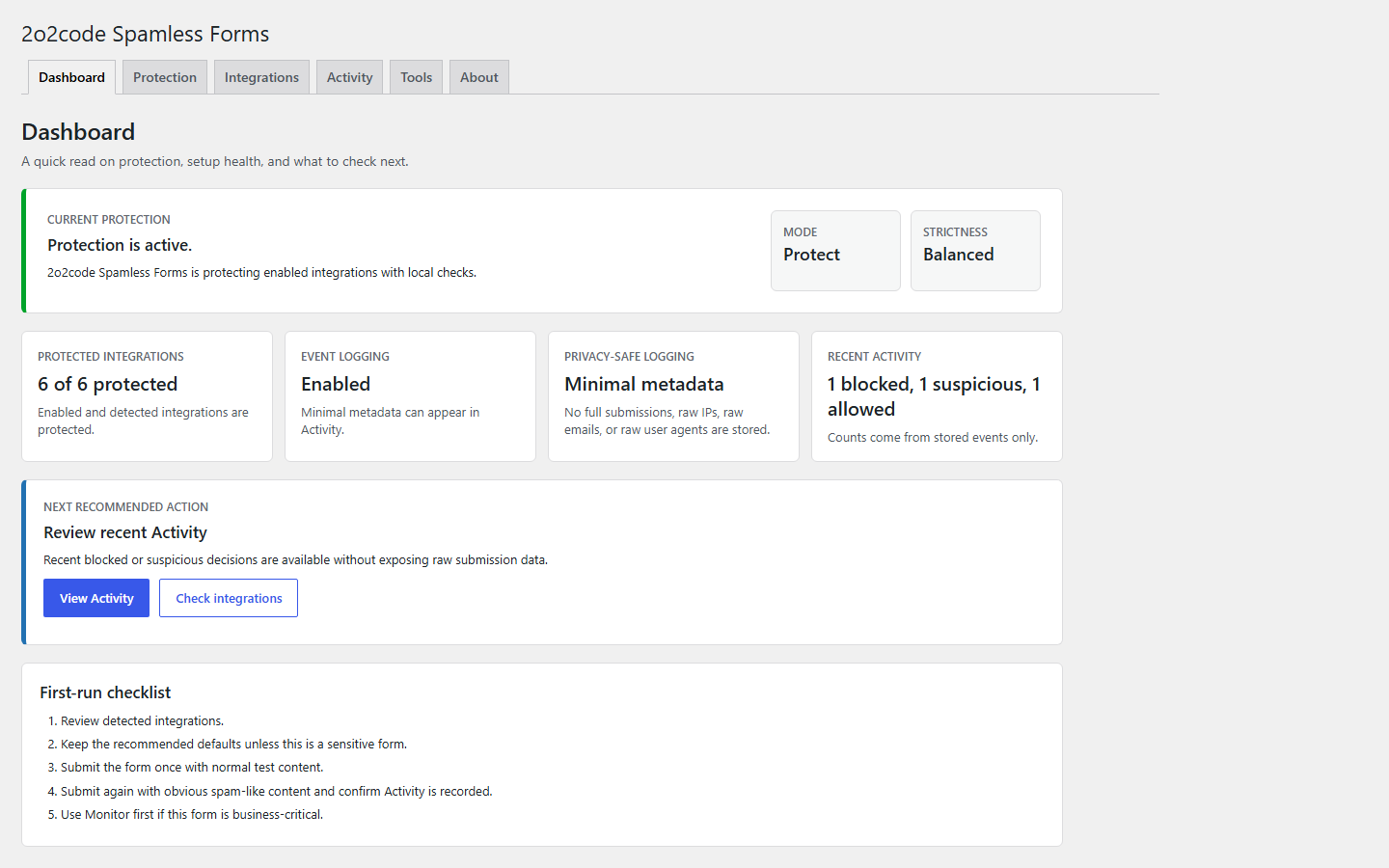
What happens when a WPForms entry is submitted
Once WPForms Lite is active and its integration preference is enabled, the plugin adds its local verification fields to the form. During processing, the submitted context enters the shared Spamless Forms engine before WPForms finishes the request.
- WPForms builds the request.The visitor completes the existing form; no additional puzzle or checkbox is inserted into the visible interface.
- WordPress evaluates local signals.Verification state, timing, repeated requests and hard spam indicators can contribute to the decision under the current settings.
- The selected mode controls enforcement.Monitor records relevant decisions without stopping WPForms. Protect can reject a high-confidence result.
- WPForms handles the response.When a request is blocked, the visitor receives the form plugin’s validation feedback while the detailed reason remains in the administrator-only Activity view.
This separation matters: WPForms continues to own the form experience, while 2o2code Spamless Forms supplies a local anti-spam decision. No remote service is needed to score the content.
Configure WPForms Lite spam protection in WordPress
Before adding another plugin, submit the form once and confirm that its normal success message, email notification and any redirect already work. A known-good baseline makes later troubleshooting much faster.
- Confirm WordPress 6.4 or newer and PHP 7.4 or newer.
- Update and activate WPForms Lite, then publish the form on its intended page.
- Prepare synthetic test details that do not belong to a real customer.
- Use a staging copy when the form handles important sales or support enquiries.
Next, open Plugins > Add New and search for 2o2code Spamless Forms. Install the official Free plugin from WordPress.org, activate it and go to Settings > 2o2code Spamless Forms.
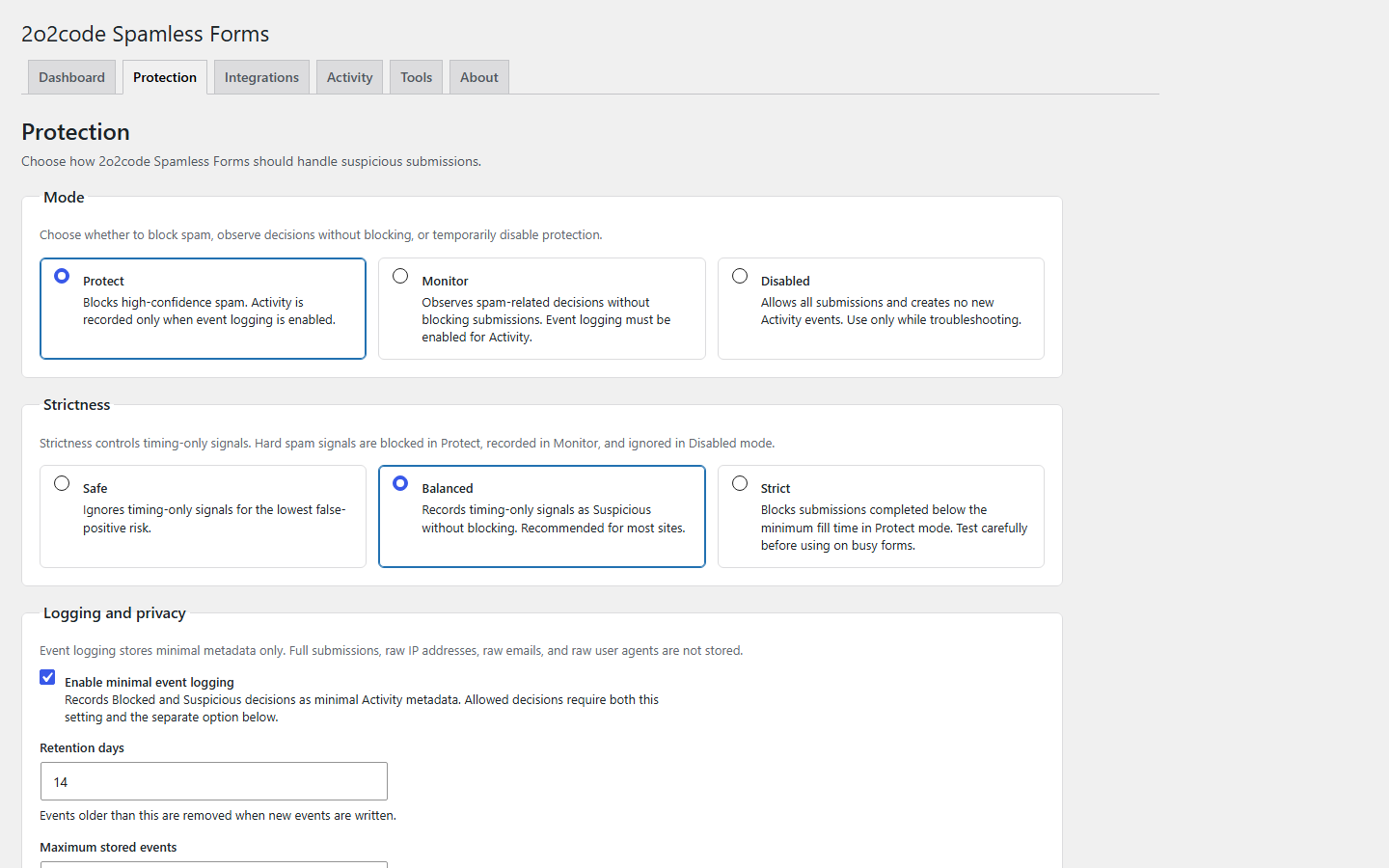
On Protection, enable Event logging and choose Monitor for the first controlled test. Keep allowed-submission logging off for normal operation; turn it on briefly only when you need to confirm that a clean entry reached the engine. The default retention and record limits are designed to keep Activity bounded.
Confirm that Spamless Forms can see WPForms Lite
Open Integrations and locate the WPForms Lite card. Detected means the form provider is active. Enabled means its saved protection preference is on. Both signals should be present before testing.
If WPForms is temporarily deactivated, the preference can remain saved even though detection disappears. Reactivating the provider and refreshing Integrations should restore the detected state without rebuilding the form.
The integration card confirms availability and preference. Protect, Monitor or Disabled still determines whether the shared engine blocks, observes or bypasses the submission.
Choose a rollout profile instead of guessing
A staged rollout is safer than starting with the most aggressive combination. Use the profile that matches the form’s current risk and adjust it only after reviewing evidence.
Observe first
Select Monitor with Balanced strictness for an important existing form. Suspicious patterns can be logged, but the visitor is not stopped while you establish a baseline.
Standard production
After successful checks, choose Protect and retain Balanced. Strong decisions may be rejected, while timing by itself remains a non-blocking Suspicious signal.
Fast, minimal forms
Safe ignores timing-only evidence and can be useful when legitimate visitors complete a very short form quickly. Other hard signals remain available in Protect.
Evidence-led tightening
Strict can reject entries completed below the minimum fill time when Protect is active. Trial it in Monitor and review genuine traffic before using it on a live form.
Disabled is a full bypass rather than a testing profile: submissions continue through WPForms, local checks do not run and no new Activity entries are created.
Run a before-and-after verification plan
Testing should prove that legitimate WPForms behavior still works as well as showing that suspicious activity can be identified. Do not use a real person’s email, IP-related information or customer message in a diagnostic example.
- Submit an ordinary enquiry.Use realistic but synthetic text and confirm the same WPForms success state observed before installation.
- Check delivery outside the plugin.Verify the expected notification or workflow independently; an anti-spam decision does not prove that mail delivery is configured correctly.
- Send a controlled spam-like sample.Use obvious promotional wording or several artificial links without including personal data or targeting another website.
- Compare Monitor and Protect.Monitor should allow the request while recording relevant evidence. Protect can stop a sufficiently strong decision through WPForms validation.
- Repeat after caching changes.If the site uses page caching or optimization, clear the cache and confirm that both a normal and a diagnostic submission still behave as expected.
Use Activity as a decision log, not a submissions inbox
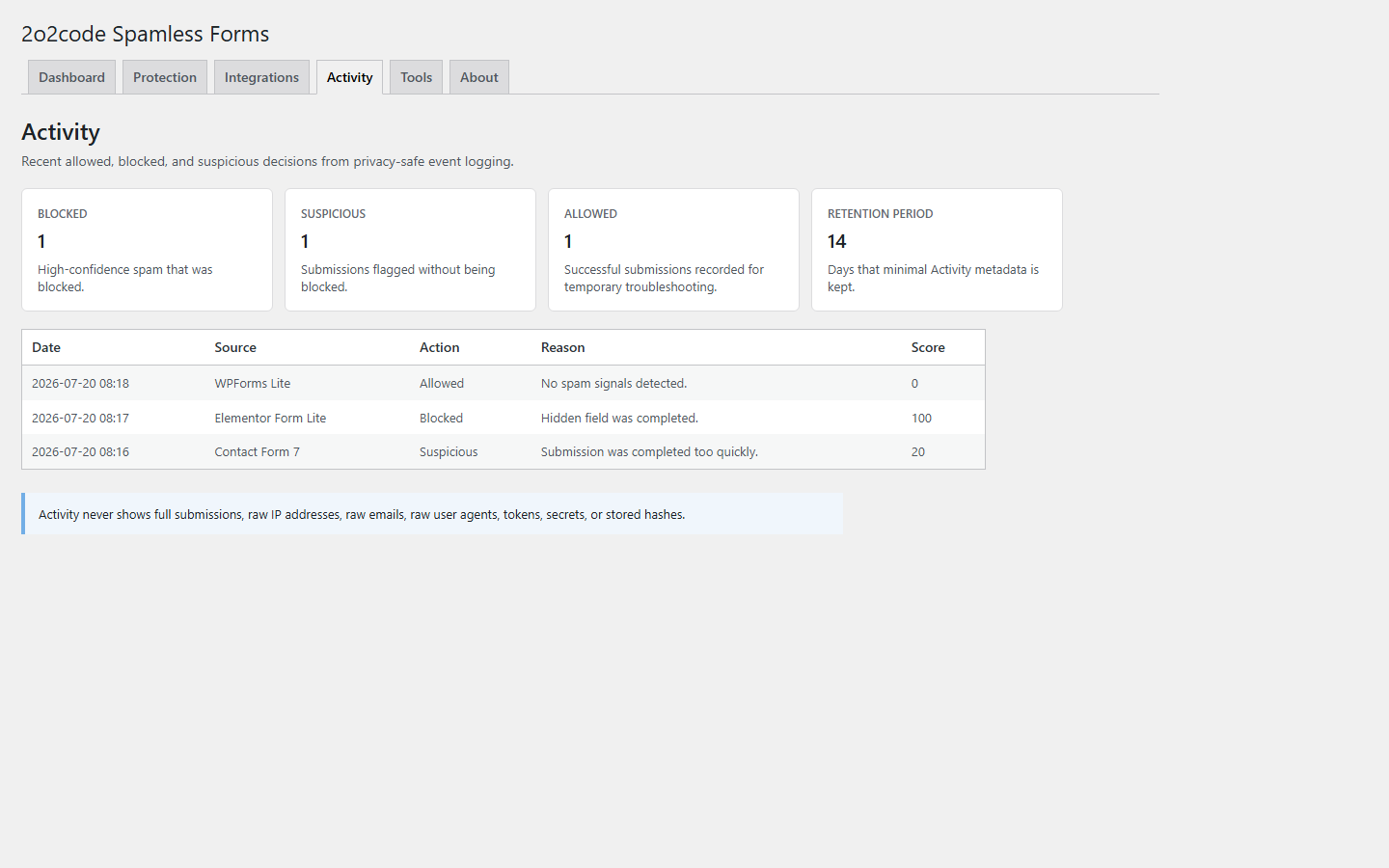
Activity is intended to explain how the local engine classified a request. It can identify WPForms Lite as the source and show a timestamp, status, score and readable reason. The score represents combined signal strength; it should not be interpreted as a percentage probability.
- The originating integration
- Allowed, Suspicious or Blocked outcome
- Decision time and explanatory reason
- Bounded, non-reversible identifiers where available
- The complete WPForms payload
- Unhashed IP addresses
- Plain email values
- Unprocessed browser user-agent strings
Logging can be disabled when no diagnostic history is required. If it stays enabled, choose retention and maximum-record values that fit the site rather than treating Activity as permanent storage.
WPForms Lite troubleshooting checklist
WPForms is not detected
Verify that WPForms Lite is activated, refresh the Integrations tab and confirm that the form itself still renders. A saved preference cannot make an inactive provider available.
A normal entry looks suspicious
Read the exact Activity reason. For timing evidence, keep Balanced or try Safe; change one control at a time and rerun the clean submission.
Nothing appears in Activity
Confirm Event logging, the WPForms integration preference and an active mode. Clean submissions are normally omitted unless allowed logging is temporarily enabled.
JavaScript is unavailable
A missing JavaScript token on its own produces a Suspicious, non-blocking result. Rate limiting and hard spam evidence still apply and may block in Protect.
The visitor sees an error
Check whether Activity recorded a Blocked decision. Detailed evidence is intentionally kept out of the public WPForms response and remains available to an administrator.
WPForms Lite spam protection FAQ
Is WPForms Lite included in 2o2code Spamless Forms Free?
Yes. WPForms Lite protection ships with the complete Free 1.0.0 plugin available from WordPress.org; it is not a trial feature.
Will customers see a CAPTCHA challenge?
No. This setup does not insert a CAPTCHA, puzzle or remote verification widget into the WPForms interface.
Are WPForms messages sent to an anti-spam service?
No external scoring API is contacted by Spamless Forms. Anti-spam evaluation happens in WordPress. Your normal hosting, email and WPForms workflows remain separate and should be assessed under their own privacy terms.
Is the future PRO edition required?
No. PRO is under development, while the WPForms Lite workflow documented here is already part of Free 1.0.0.
Should Strict be enabled immediately?
Usually not. Balanced is the practical starting point for most forms. Use Monitor to study fast legitimate submissions before allowing timing to become a blocking reason.

Local WPForms protection
Build a quieter WPForms workflow without adding a challenge.
Install the complete Free release, follow the verification plan and use the documentation when Activity points to a setting worth reviewing.
Have a WPForms-specific question after testing? Send focused feedback to 2o2code. To hear about future releases, subscribe to product updates.